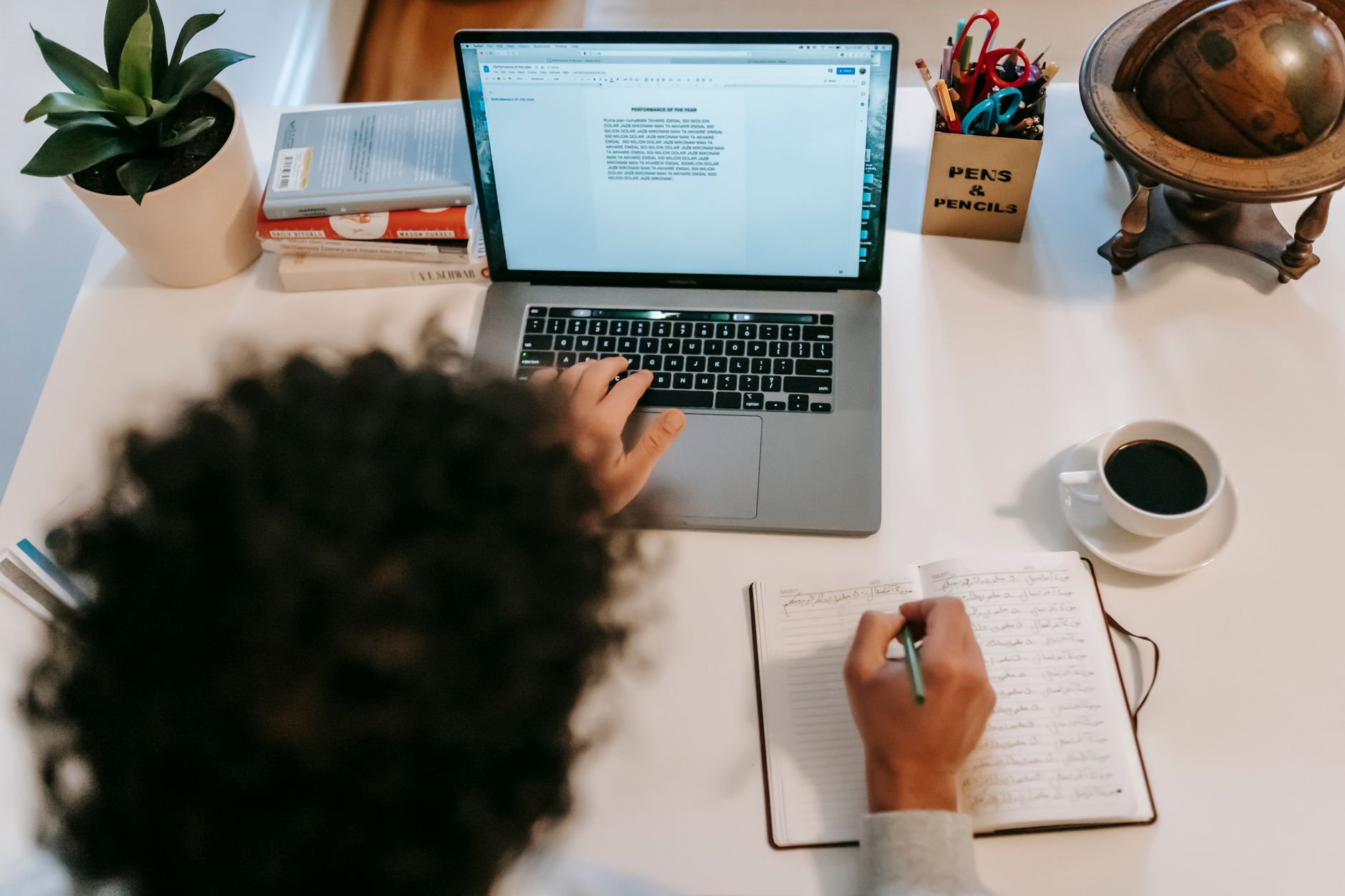
Most photographers do not lose time behind the camera. They lose it at the desk. A single wedding can produce 3,000 to 5,000 frames. Culling those by hand eats four to six hours. Basic edits add another five to eight. Client emails and album design pile on top. In 2026, AI tools can remove a full workday from that loop. This guide ranks the tools I have tested for culling, editing, cleanup, text, and delivery. You can pair these picks with AI image generation tools for composites and backgrounds.
The key shift is that AI now handles repetitive decisions. It does not replace your eye. It removes the 90 percent of work that requires no creative choice. For example, AI culling flags blurry shots, duplicate frames, and closed eyes in seconds. Batch editing matches your style across hundreds of images. Smart masking selects skies, faces, and subjects without manual brushes. If you run a small studio, this is no longer optional. It is the difference between delivering in three days and delivering in two. The savings are real, but only when you choose tools that match your workflow. Learning how to use AI for business also matters.
Not every AI photography tool earns its monthly fee. Some add little beyond built in Lightroom features. Others create weird skin textures or fake detail. I have spent months testing current options across real client shoots. My test set includes portraits, events, headshots, and landscapes. In this guide, I rank the tools by time saved, output quality, and price. I also include free tier limits and failure cases so you do not repeat my mistakes. For background and concept work, you can compare Midjourney and DALL-E to see which fits better.
You do not need every tool on this list. Most photographers save the most time with three or four. A culler, a batch editor, a cleanup tool, and a text assistant. Adding automation can remove another hour of export and gallery work. The goal is 10 or more hours back every week without sacrificing your style. I also include warnings about privacy, licensing, and overlapping subscriptions. If you edit video clips for clients, check our guide to AI video editing tools as well.
What You’ll Need
- Adobe Lightroom
- Aftershoot
- Topaz Photo AI
- ChatGPT account
- Zapier or n8n account
How Do You Best AI Tools for Photographers 2026?
- Sort every session with AI culling first
Start your editing week with an AI culling pass. Aftershoot remains my top pick because it learns your keepers. You connect a folder or Lightroom catalog, choose your tolerance, and let it score every frame. Aftershoot checks focus, blink, exposure, and duplicate similarity. It then groups near duplicates and flags the sharpest version. This removes the worst part of a wedding or event workflow. I have watched a 4,700 image wedding return a first pass in about 20 minutes. That saves three to four hours before you touch a single slider. The tool is not perfect. It may dismiss an emotional moment that is slightly soft. So you still do a quick pass on the flagged rejects. But the time math is clear. AI productivity tools follow the same principle: remove the obvious before you do the creative work. Aftershoot has a free trial that lets you test on a real session. This is the fastest single change you can make. Start with one full gallery. Compare your manual keep rate to the AI’s picks. If it misses more than a few real moments, adjust the sensitivity. In my tests, it hit over 90 percent of the keepers I chose by hand. That alone gets you close to the ten hour weekly goal.
- Batch edit with AI masks and a core preset
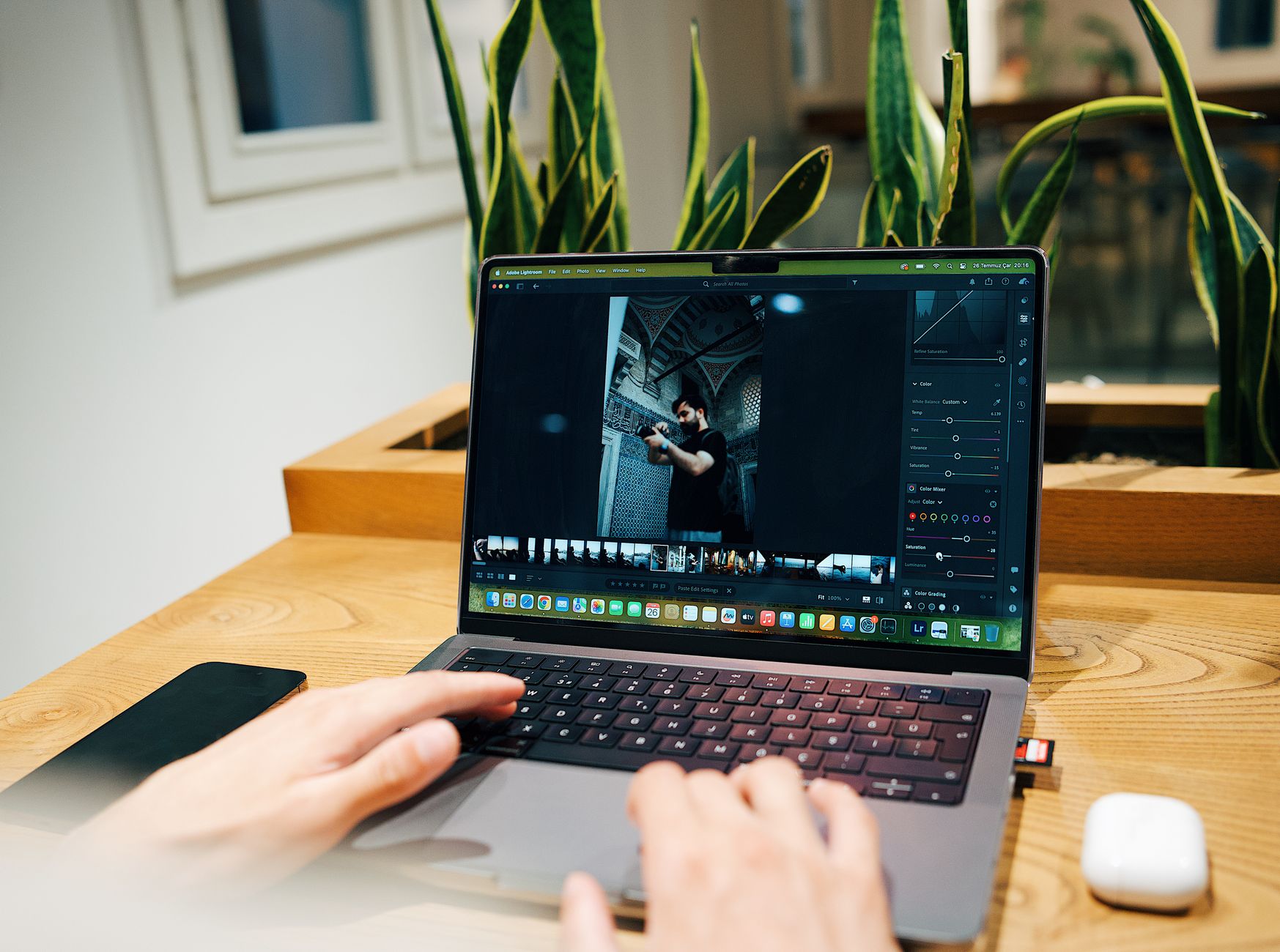
After culling, move your keepers into a batch editor. Adobe Lightroom is the default because its AI masking is mature. Select subject, sky, background, teeth, eyes, and body parts with one click. You can then apply local adjustments across every image. Lightroom syncs those masks to the whole set. Adobe’s Photography plan starts at $9.99 per month with 20GB of cloud storage. That is a concrete number to budget around. For high volume event photographers, Imagen AI is another strong pick. It builds a personal AI profile from your past edits. You upload 3,000 to 5,000 images, set your style, and it returns a consistent batch. The catch is that Imagen charges per photo after a trial, so the cost rises with volume. Lightroom is better if you already live in the Adobe world. Imagen works well if you outsource high volume edits. Your preset still needs a human check. AI masks fail on complex hair, veils, or busy backgrounds. But you can fix the worst frames and let AI handle the rest. This step often cuts five to eight hours of basic edits per wedding. Pair it with noise cleanup in the next step for a complete pass. Do not skip the AI mask check. If a mask selects the wrong zone, copy it across the batch and you multiply the error. Later, if you need to create or extend backgrounds, compare options in our AI image generation guide.
- Clean noise and sharpen with Topaz Photo AI
Once your basic edits are done, run a cleanup pass. Topaz Photo AI is the best all in one tool for noise, sharpening, and face recovery. It costs $199 as a one time license, not a subscription. That is a key data point because many tools nickel and dime you monthly. Topaz works as standalone software or as a plugin for Lightroom and Photoshop. The autopilot mode analyzes each image and applies the right mix of denoise and sharpen. For high ISO receptions or indoor events, this can rescue shots that would otherwise be unusable. Face recovery rebuilds eyes and skin texture in out of focus portraits. It is not magic. If the original is severely blurred, the result can look plastic. But for moderate noise and motion blur, Topaz saves a significant number of frames. I run it as a batch on my final selects. You can set it to output DNG or TIFF files into a review folder. This step costs money upfront, but if you shoot more than a few low light sessions, it pays for itself quickly. Use it on noisy reception shots, sports, and any work at ISO 3200 or higher. Do not run it on every image and then overlay heavy grain later. That doubles your work. Keep the original RAW files in a separate folder. This makes it easy to reprocess if the AI overcorrects.
- Extend backdrops and remove distractions with AI fill
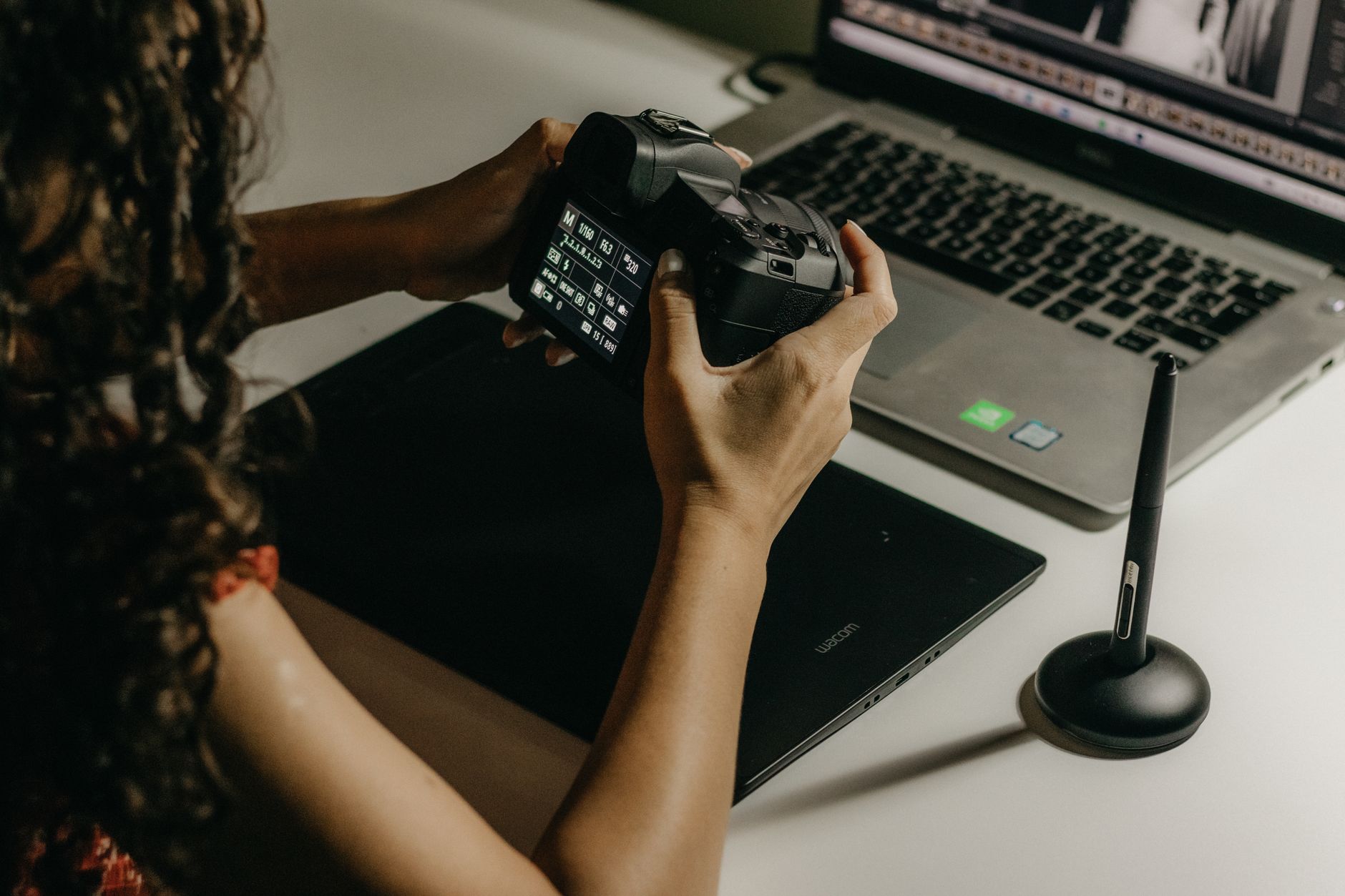
AI fill tools have moved from novelty to daily utility. Photoshop’s Generative Fill lets you select objects and remove them, or expand a background to fit a different crop. You select a region, type a prompt, and Photoshop generates new pixels. For commercial and portrait work, this fixes power outlets, exit signs, trash cans, and accidental photobombers. The same tool can extend a seamless backdrop when you need a square crop from a vertical headshot. Adobe Firefly powers these features, and Adobe has moved to accept commercial use for generated content in most cases. Still, check the license for your specific market. If you do not use Photoshop, you can use a standalone AI image tool for concept work or background plates. Our AI image generation guide covers DALL-E, Midjourney, and other options. For a deeper comparison of two popular generators, read Midjourney versus DALL-E. The key is to use generated backgrounds as a plate, not a final product on its own. Merge them with your subject in Photoshop and match light, grain, and color. This step saves hours of cloning and patch tool work. But do not let AI fill replace necessary retouching. Skin, eyes, and clothing still need your judgment. Use fill for backgrounds and objects, then finish the rest yourself.
- Generate captions, emails, and SEO text with ChatGPT
Photographers also spend hours on non image tasks. Captions, blog posts, client emails, and SEO descriptions eat into your week. ChatGPT handles these well when you give it clear prompts. Paste your session notes or venue details and ask for 10 caption options in your voice. Then edit the best one. ChatGPT’s GPT-4o model has a context window of about 128,000 tokens, so you can include a long client brief or a full album description. The official OpenAI documentation covers prompting and usage notes. Google AI’s Gemini offers an even larger context window of up to 1 million tokens on some models, which is useful for summarizing long client feedback threads or a year of session notes. You can test both at Google AI. For longer writing projects, our AI tools for writers guide ranks options by quality and price. The real time savings is in repetitive emails. Write a booking reply, a gallery delivery note, and a print order follow up. Save each as a template. Then customize six client emails in 15 minutes. Do not let AI write customer service messages without review. Tone matters. A wrong phrase can cost a referral. But using AI as a first draft saves three to five hours per week for most portrait and wedding photographers.
- Automate delivery and admin with AI workflow tools
Your culling and editing time drops, but admin still lingers. AI workflow tools like Zapier and n8n can automate export notifications, gallery delivery, and follow up emails. Zapier connects more than 7,000 apps, so you can trigger a client email when a gallery exports. n8n is a lower cost, self hosted option with a visual builder. For example, when you move edited JPEGs into a folder, the workflow can upload them to Pixieset or Dropbox, send the client a delivery email, and create a task for album design. This step removes 30 minutes of manual clicking per session. It also prevents late night email mistakes. You can start with two automations. First, a delivery notification with the gallery link. Second, a follow up sequence asking for a review or print order. If you run a small studio, check our AI tools for small business guide for more no code setup ideas. The catch is that automation takes a few hours to build. But once it is live, it runs forever. Use a shared drive or cloud folder as the source of truth. That way your AI tools and automation work from the same set of files. Do not connect client galleries to random third party services without reading the privacy policy. Client contracts usually require you to protect image data.
- Audit your stack monthly and protect the originals
After you set up the workflow, do a monthly audit. List every AI subscription and one time tool. Check how many images you actually run through each tool. Many photographers pay for Lightroom, Luminar Neo, Topaz Photo AI, DxO PureRAW, and Evoto while using only two or three. Cancel the overlap. Put the money toward a faster SSD or a backup drive. This audit alone can save $30 to $100 per month. Also, keep a master folder of original RAW files that no AI tool can overwrite. Batch AI edits sometimes create derivative TIFFs, JPEGs, and DNGs. Separate originals from exports so you can always reprocess. Review the AI output once per week. If a tool starts creating skin artifacts or bad masks, adjust the settings or reinstall. The best AI stack changes as tools update. You can compare general assistants with our ChatGPT versus Claude guide if you use them for writing and client work. Do not chase every new AI app. Pick the tools that shave real time and keep your style intact. Revisit this guide once per quarter. Your goal is 10 or more hours back every week, not a new collection of subscriptions.
Red Flags & Warnings
- 🚨 Never upload full galleries to a free AI culling or editing tool without reading its privacy policy. Client contracts often require you to keep images private.
- 🚨 Do not delete original RAW files after batch AI edits. Keep a separate original folder so you can reprocess if the AI overprocesses skin or textures.
- 🚨 Skip AI tools that duplicate built in features. Lightroom already has AI masking and denoise. Paying for Luminar Neo and Topaz may waste money if you only use Lightroom.
- 🚨 Check commercial licensing before using AI generated backgrounds in client work. Some platforms restrict selling images with AI fills.
- 🚨 Do not let AI culling make every final decision. A soft but emotional moment can matter more than a sharp but boring frame.
- 🚨 Beware of one click AI presets that flatten your style. Apply AI as a base, then adjust tone, grain, and crop by hand.
Frequently Asked Questions
What is the best AI tool for culling photos in 2026?
Aftershoot is the strongest option for most photographers. It learns your preferences and flags blur, closed eyes, and duplicates. It saves three to four hours on a large wedding gallery. A free trial covers your first real session.
Can AI editing replace my manual Lightroom workflow?
Not completely. AI batch editing and masking handle repetitive work, but you still need to check skin, masks, and emotional moments. Use AI to get 90 percent there, then apply final creative adjustments yourself.
How much does an AI photography workflow cost?
A basic setup with Aftershoot, Lightroom, and Topaz Photo AI costs about $15 per month plus $199 one time. If you add Imagen or Evoto, the cost rises with volume. Expect $30 to $60 per month for a full stack.
Which AI tools are best for low light noise and sharpening?
Topaz Photo AI is the top pick for noise, sharpening, and face recovery. It costs $199 as a one time license. DxO PureRAW is another strong option if you prefer DxO’s color science. Both work as plugins for Lightroom.
Are AI generated backgrounds safe to use for client photos?
It depends on the platform and license. Photoshop’s Generative Fill is generally allowed for commercial work, but you should verify your local market rules. Avoid using AI generated backgrounds that misrepresent a location for editorial or news work.
How do I protect client privacy when using AI photography tools?
Keep original RAW files in a private folder. Use tools that state how they handle your images. Do not upload to unknown free services. When using automation, limit third party app permissions to the folders needed for delivery.
What Should You Remember?
- AI culling is the fastest single time win. It can cut a 4,700 image wedding from hours to about 20 minutes.
- Batch editing with Lightroom or Imagen saves five to eight hours on large sessions. Check AI masks before syncing.
- Topaz Photo AI costs $199 one time and recovers noisy or slightly soft shots without a subscription.
- Use AI text for captions, client emails, and SEO descriptions. ChatGPT and Gemini handle the first draft quickly.
- Automate delivery with Zapier or n8n. Zapier connects more than 7,000 apps for notification and follow up flows.
- Audit subscriptions monthly. Many photographers pay for overlapping tools that duplicate built in Lightroom features.
- Keep originals separate. Batch AI edits should never overwrite RAW files, so you can reprocess with any future tool.
This article is for general information only and does not constitute professional advice. Product capabilities, pricing, and market figures change frequently. Always verify current details through vendor documentation and primary sources.