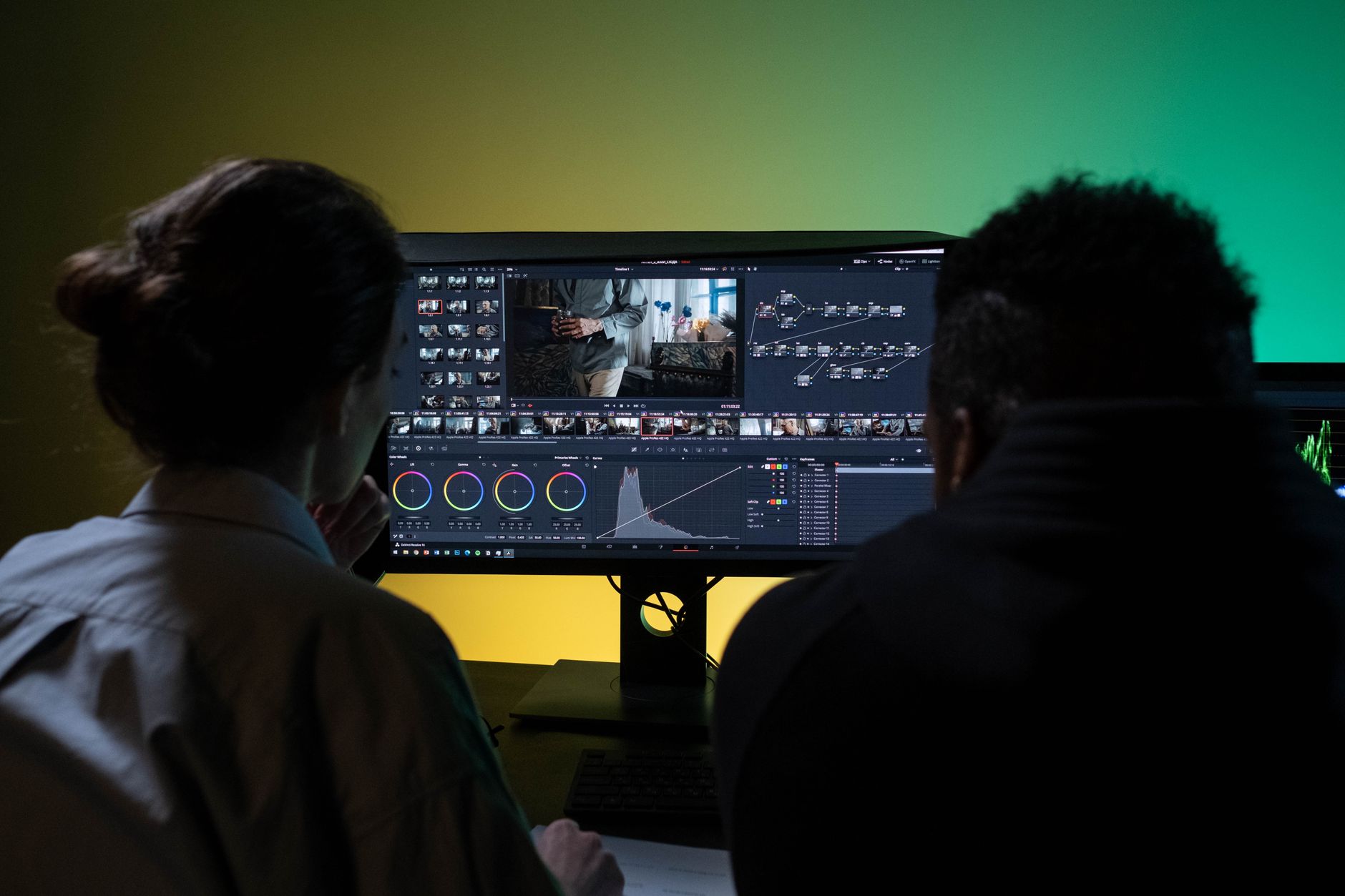
Video editing used to mean dragging clips on a timeline for hours. In 2026, AI has changed that. Smart tools now produce rough cuts, clean audio, generate b-roll, and create captions in minutes. But the market is crowded. You need to know which tools actually save time. This guide ranks the best AI tools for video editing in 2026 and shows a practical workflow. If you already use AI for writing or marketing, you know the shift. Check our guide on best AI tools for marketers to see how automation fits a larger stack.
The key is not one magic app. It is a workflow. Different tools handle different stages: logging, cutting, visual effects, color, audio, and distribution. Pairing the right tool to each stage prevents wasted money and render errors. Some editors still live in Adobe Premiere Pro, while others start in Descript and finish in CapCut. For creators making short social clips, a tool like Runway can add generative b-roll without leaving the timeline. Our guide to best AI tools for image generation covers related visual workflows.
Pricing matters more in 2026 because many tools moved to credit-based pricing. That means a free plan may include one-time credits that run out. We included specific free-tier limits and paid plan prices below. You should also check whether a tool stores your raw footage and whether it exports without watermarks. Privacy policies vary widely. For a broader look at how to use AI across your business, see how to use AI for business.
We tested these tools on real edits: a talking-head video, a product demo, and short social clips. The workflow below is not theoretical. It starts with rough cut, moves through generative b-roll and audio cleanup, then finishes with export and repurposing. No single app won every category. Descript wins for editing by text, Runway wins for generative effects, and CapCut wins for social speed. Let’s break down each step.
What You’ll Need
- Descript
- Runway
- DaVinci Resolve or Adobe Premiere Pro
- CapCut
- Topaz Video AI
- Opus Clip
How Do You Best AI Tools for Video Editing in 2026?
- Define your video style, length, and primary platform
Before choosing tools, write down the video type: talking head, tutorial, promo, vlog, or internal update. Then note the length and target platform. YouTube, TikTok, Instagram, and internal portals each need different aspect ratios and pacing. AI tools optimize for certain formats. For example, CapCut is built for vertical 9:16, and DaVinci Resolve excels at cinematic color. This prevents you from buying the wrong subscription. If you make long-form YouTube content, Descript plus Premiere makes sense. If you make 30-second Reels, Descript may be overkill.
Output resolution and captions matter next. If you need 4K, check free tier export caps. Many AI tools limit free exports to 720p or add a watermark. List your must-haves: subtitles, b-roll generation, background removal, voice cloning. Then map those to tools in the later steps. We compare many of these in the key takeaways. Knowing your non-negotiables up front saves frustration later.
Budget is the third factor. AI video tools range from free to over $30 per month. Decide if you need generative video or only text-based editing. Generators like Runway consume credits quickly, so a cheap plan can run out faster than expected. If you rarely need AI b-roll, use free credits or stock footage. For team use, consider collaboration features and seat pricing. DaVinci Resolve’s free version is a strong starting point for solo editors.
Finally, connect this to your other workflows. If you already use a writer or marketer stack, see best AI tools for productivity to align formats and naming. You can also automate intake with Zapier or n8n later. But finish this step first. Clear output goals determine the tool order below.
- Rough cut from a transcript with Descript
Descript is the fastest way to cut a talking-head video. Import your file, and it transcribes the audio. You edit the transcript like a Google Doc. Delete filler words, move sentences, and the video timeline changes automatically. This is not a minor feature. It turns a one-hour raw recording into a tight ten-minute cut faster than any traditional editor. Use it for interviews, podcast clips, tutorials, and voiceover cleanup.
The free plan includes one hour of transcription per month and exports at 720p with a watermark. Paid plans start around $16 per editor per month if billed annually, and Pro removes the watermark and unlocks 4K. This pricing matters if you produce daily. For occasional edits, free works. For a business channel, paid is worth it. Descript also includes filler word removal, studio sound, and eye contact correction.
One caution: automatic transcripts are around 90 to 95 percent accurate, not perfect. Names, technical terms, and accents can trip it. Use Descript’s correction tool, then review before removing anything. A common mistake is deleting a sentence that contained an important word. We cover AI accuracy limits in the warnings below. Still, this is the rough-cut step, not the final QC.
If you also write scripts or edit blog posts, Descript blends with those tasks. Our guide on best AI tools for writers shows similar text-first workflows. After you finish the rough cut, export a clean timeline or use Descript’s built-in screen recording. Then you can add b-roll in the next step using Runway or stock footage.
- Generate b-roll and visual effects with Runway
Runway handles what most editors cannot: generating video clips from text or still images. If your rough cut has a narration about a coffee shop but no footage, type a prompt and get a short clip. Runway’s Gen-3 and newer models produce clips up to ten seconds. That is enough for b-roll, transitions, and background plates. You can also use text-to-image, inpainting, and motion brush to animate specific areas.
Pricing uses credits. New accounts get a one-time 125 credits, which may generate roughly 20 to 30 seconds of video depending on model. Paid plans start at $12 per editor per month, but heavy users burn through credits fast. Many creators buy a small plan and use free stock for most b-roll, saving Runway for shots that do not exist elsewhere. This is a practical, budget-friendly pattern.
Runway connects with the larger AI visual ecosystem. Some tools build on OpenAI’s Sora and Google’s Veo, and you can see official model announcements at OpenAI and Google AI. If you are already generating images, link to best AI tools for image generation for complementary workflows. You can import those stills into Runway and animate them.
The catch is consistency. A generated clip may have flickering, morphing faces, or weird text. Use short cuts, keep movement simple, and generate multiple takes. Do not use AI-generated video as factual footage or news. It is for b-roll, stylized backgrounds, and creative effects. If you need realistic product shots, shoot them yourself. If you need fantasy scenes, Runway is unmatched.

- Clean audio, color, and timeline with DaVinci Resolve or Adobe Premiere Pro
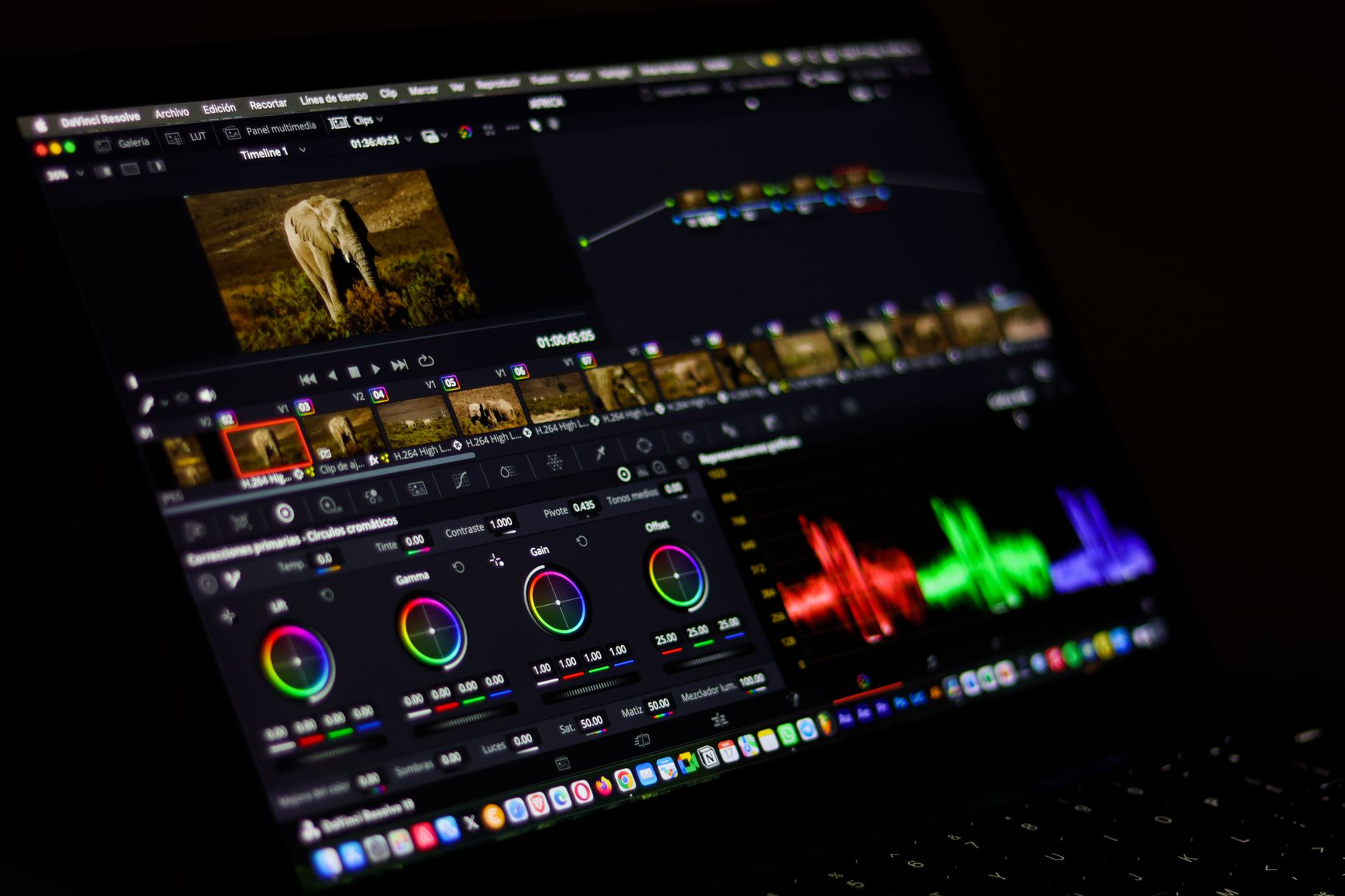
AI rough cuts get you far, but final polish still needs a professional editor. DaVinci Resolve and Adobe Premiere Pro are the top two. DaVinci has a free version that includes Fusion, Fairlight, and color grading with no watermark. That makes it the best free pro editor. Premiere Pro costs $22.99 per month, but its Sensei AI features include auto-reframe, scene edit detection, and text-based editing. Choose DaVinci if you want free and powerful; choose Premiere if you already use Adobe apps.
Audio cleanup is the next big AI win. Both tools can remove noise, normalize levels, and reduce reverb. DaVinci’s Fairlight includes automatic dialogue leveling. Premiere’s Enhance Speech works on most clips. For social video, you can also run audio through Adobe Podcast, but that is separate. The free DaVinci path covers audio polish without extra cost.
Color grading matters for brand consistency. DaVinci Resolve has industry-standard color tools, and the free version is not crippled. In Premiere, AI auto-color can match shots. If you produce client work, invest time in a color preset. It makes videos look more expensive. Use the same preset across all clips. That consistency builds recognition.
Integration with marketing stacks is another reason to choose Premiere. It links to Adobe Stock, Photoshop, and Audition. If you already use marketer tools, see best AI tools for marketers to connect assets. But if you are a solo creator, DaVinci free is the better first choice. Both support export presets for YouTube, TikTok, and Instagram.
- Auto-caption and restyle for social with CapCut
CapCut is the fastest way to turn a long edit into vertical social clips. Import a 16:9 video, use auto-reframe to 9:16, add animated captions, and change the background. The free tier still exports 1080p without a watermark for most basic features. CapCut Pro adds 4K, more AI effects, and stock assets, and starts around $9.99 per month. This is the tool for creators who publish daily on TikTok, Reels, or Shorts.
Automatic captions are not just nice; they are necessary for silent mobile viewing. CapCut’s caption engine is fast and lets you restyle fonts, colors, and animations. But always proofread. AI captions can mishear product names, accents, or slang. A wrong caption can embarrass a brand. Use CapCut’s edit captions tool to fix errors before exporting.
The app also includes templates that match trending social formats. You can drop clips into a template, and it adjusts timing, transitions, and text. This is a massive time-saver for consistent posting. Some templates require Pro. Test a few free ones first. If you manage a business account, batching a month of clips in CapCut is a solid workflow. We cover social automation in best AI tools for small business.
One risk is overediting. Too many transitions and captions can hurt watch time. Use CapCut for speed, not for every effect. Keep captions readable, use one or two fonts, and do not cover the face. The best social clips are simple. Export at the platform’s native resolution and bitrate.
- Upscale and restore old or low-res footage with Topaz Video AI
Not every clip starts in 4K. Topaz Video AI fixes low resolution, noise, and frame rate issues. It uses machine learning models to add detail and smooth motion. This matters for archival footage, screen recordings, zoom clips, or phone videos. If you have a 720p clip, Topaz can produce a clean 1080p or 4K version. The results are not perfect, but they are often better than the original.
Topaz Video AI costs $299 as a one-time purchase for the software, not a subscription. That is a higher upfront cost but cheaper over years than monthly tools. It runs on your local machine, so you need a decent GPU. Rendering can be slow. Use it selectively for the clips that actually need upscaling, not entire projects. For most modern phone footage, CapCut or Premiere sharpening is enough.
This tool pairs well with historical or corporate training content. Old conference recordings and product demos often look soft. Upscale them before adding captions or repurposing. In our workflow, use Topaz after you have decided which clips will appear in the final cut. That way you only spend render time on selected shots.
Keep in mind that AI upscaling can introduce artifacts like waxy skin or warped text. Always compare the AI version with the original at 100 percent zoom. If the original is severely damaged, consider paying a restoration service. For most everyday edits, Topaz is a backup tool, not a daily driver. But when you need it, it saves a reshoot.
- Repurpose long videos into clips with Opus Clip
A 20-minute video contains several possible short clips. Opus Clip finds the best moments and turns them into vertical clips with captions and titles. It uses AI to score segments based on engagement and clarity. You give it a link or upload, and it returns 10 to 20 clips, each 30 to 90 seconds. This is the fastest way to feed a daily social calendar.
Many creators use Opus Clip to repurpose podcasts, webinars, and YouTube videos. It can detect speakers, add captions, and suggest titles. Some plans allow you to connect directly to YouTube and auto-generate clips after each upload. This creates a system: long video goes in, shorts come out. If you already have a content workflow, check best AI tools for marketers to see how repurposing fits.
The free tier usually includes limited processing minutes. Paid plans start around $19 per month. That is worth it if you publish more than 10 clips monthly. But do not blindly post every clip. Review the AI’s picks. Sometimes it cuts mid-sentence or chooses a weak moment. Use Opus Clip as a first pass, then hand-select the best three to five clips for final editing in CapCut.
If you process customer interviews or team updates, this can also feed internal comms. But be careful with privacy. Do not upload confidential meetings to a third-party tool without permission. We detail privacy warnings below. After repurposing, you can automate uploads or notifications with a tool like n8n or Zapier. That leads to the final step.
- Review, export, and automate your delivery
AI speeds editing, but final review is still human. Watch the entire video once at normal speed. Check for caption mistakes, awkward AI-generated b-roll, and audio level jumps. Export a test file and check on a phone. Small screens reveal issues that desktop monitors hide. Fix those before final delivery.
Export settings depend on platform. YouTube prefers 16:9 with high bitrate; TikTok and Reels prefer 9:16 and lower bitrate. Most tools have presets, but you should know your target. If you are sending to a client, follow their delivery specs exactly. Do not export in the wrong frame rate. A 30fps video dropped into a 24fps timeline can stutter.
Automation is where the workflow becomes repeatable. You can use Zapier or n8n to watch a folder, trigger Descript to transcribe, and send a Slack message when captions are ready. This is not required for one-off edits, but it matters for teams. Our guide on how to use AI for business covers automation patterns. For small teams, start with manual exports and add automation once weekly volume passes five videos.
Finally, archive your project files. AI tools create many generated assets. Keep the original footage, final exports, and project files. Cloud storage like Google Drive or Dropbox works. Back up before deleting. If you used Runway or Opus Clip, download the final assets rather than relying on their cloud. AI platforms can change terms or remove features. Owning your files is safety.
Red Flags & Warnings
- 🚨 Free watermark trap: many AI editors watermark free exports. Check plan details before investing hours in an edit. Descript free watermarks at 720p; CapCut free does not for basic features. Read export limits before starting a paid client project.
- 🚨 Auto-caption errors: AI captions fail on names, accents, and technical terms. Always proofread and correct before publishing. A single wrong keyword can change meaning.
- 🚨 AI-generated footage artifacts: Runway and similar tools can create flicker, warped text, or extra fingers. Use short clips, choose simple shots, and avoid using generated footage as factual evidence.
- 🚨 Credit burn: generative video tools use credits per second. A 125-credit free tier can disappear in minutes. Set a monthly spending cap and use free stock for routine b-roll.
- 🚨 Privacy and data use: uploading raw footage to cloud AI tools may grant usage rights. Read data policies. Do not upload confidential meetings or unreleased footage without permission.
- 🚨 Overediting kills watch time: too many transitions, captions, and effects can push viewers away. Use AI to save time, not to add clutter. One font, one transition style, readable captions.
Frequently Asked Questions
What is the best AI tool for video editing in 2026?
There is no single best tool. Descript wins for text-based cutting, Runway for generative b-roll, CapCut for social clips, and DaVinci Resolve for free pro editing. Choose based on your primary video type and platform. A stack of two or three tools usually beats one all-in-one app.
Can AI fully edit a video for me?
AI can create a rough cut, add captions, clean audio, and suggest clips, but final review still needs a human. AI tools miss context, brand voice, and occasional caption errors. Use AI for 80 percent of the work and spend the last 20 percent on QC.
Is there a free AI video editor without a watermark?
DaVinci Resolve and CapCut free tier can export without watermarks for many basic features. Descript free adds a watermark at 720p. Check each tool’s current free plan, because limits change often. Free tiers are enough for short content, but paid plans remove resolution caps.
How much does AI video editing cost in 2026?
You can start free with DaVinci Resolve and CapCut. Paid tools range from $12 per month for Runway to $22.99 per month for Premiere Pro. Topaz Video AI is a $299 one-time purchase. Budget $20 to $40 per month for a practical two-tool stack.
Do AI video editing tools work offline?
Some do. DaVinci Resolve and Topaz Video AI run locally and work offline. Cloud tools like Descript, Runway, and Opus Clip need an internet connection. If you edit sensitive footage or work in low-bandwidth areas, choose local tools.
Can AI generate video from text?
Yes. Runway, OpenAI Sora, and Google Veo can generate short video clips from text prompts. These clips are best for b-roll, backgrounds, and creative effects. They are not fully controllable and often contain artifacts, so use them as supplements, not replacements, for real footage.
What Should You Remember?
- Match tool to task: Use Descript for transcript cuts, Runway for generative b-roll, CapCut for social, and DaVinci for pro color.
- Start free, then upgrade: Test DaVinci Resolve and CapCut free tiers before paying. Track your actual usage.
- Review every caption: AI captions are fast but imperfect. Read them before publishing.
- Set a credit budget: Generative video burns credits quickly. Use free stock for routine b-roll and save AI for unique shots.
- Own your exports: Download final files and keep backups. Cloud platforms can change terms.
- Do not overedit: AI can add effects faster than viewers can tolerate. Keep the edit clean and readable.
This article is for general information only and does not constitute professional advice. Product capabilities, pricing, and market figures change frequently. Always verify current details through vendor documentation and primary sources.
Some links on this page may be affiliate links, which means we may earn a commission if you click through and make a purchase — at no additional cost to you. Read our full disclosure.