Nonprofits face tighter budgets and rising service demand every year. AI tools can help with grant writing, donor outreach, volunteer coordination, and program reporting. This guide focuses on tools that offer free or discounted access for verified organizations. We tested the top options for 2026, with an eye on cost, privacy, and ease of use. Similar to small business AI tools, nonprofits can stretch limited staff time without hiring more people. The goal is maximum mission impact per dollar spent.
The shift is real. Research from McKinsey Global Institute shows generative AI could add trillions of dollars in value across sectors, and nonprofits are no exception. For a mission driven organization, the payoff is not profit but hours saved and better services. Yet choosing the wrong tool wastes money and donor trust. We looked at pricing, privacy controls, and real nonprofit workflows. If you are new to AI, start with how to use AI for business to understand the basics before diving into specific tools. This guide assumes no technical background.
You do not need a data science team. Most tools work with simple prompts and templates. But you do need clear policies, especially around donor data and public communications. We address red flags later in this guide. For a deeper comparison of two leading writing assistants, see ChatGPT vs Claude. Then apply the recommendations below to your nonprofit’s most time-consuming tasks. Focus on one workflow first, such as grant drafting or volunteer emails, and measure the hours saved each week.
How Do You Best AI Tools for Nonprofits in 2026?
- ChatGPT for Grant Writing and Donor Communications
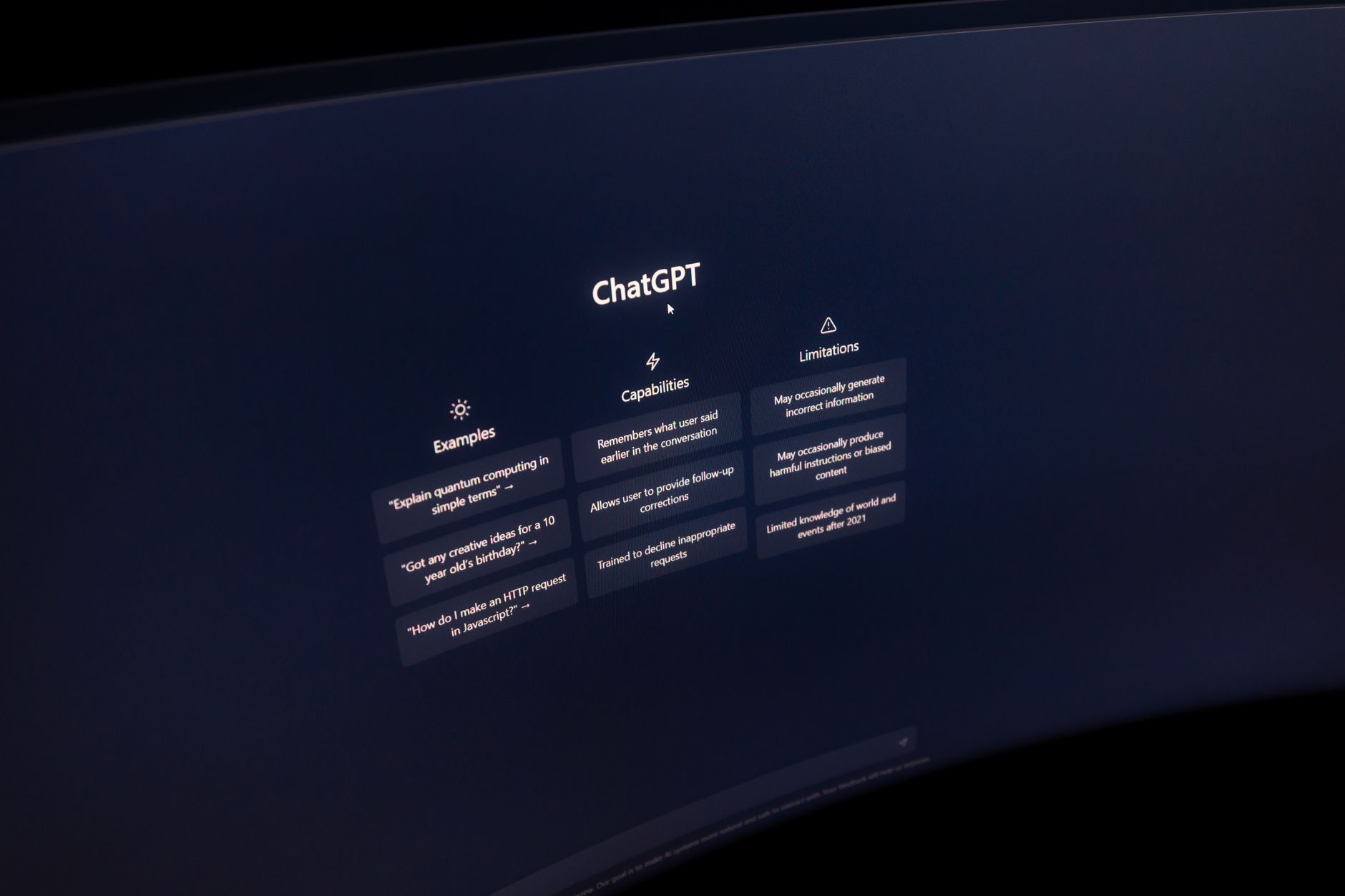
ChatGPT is the most widely used AI writing assistant, and for good reason. The free tier gives you access to GPT-4o mini, which is enough for basic drafting. ChatGPT Plus costs $20 per month and unlocks GPT-4o with a 128,000-token context window. The Team plan starts at $25 per user per month billed annually and adds shared workspaces and admin controls. Check the OpenAI pricing page for current rates and nonprofit eligibility. For many small nonprofits, the Plus or Team plan is the fastest way to cut grant writing time in half.
Grant writing is where ChatGPT shines. Paste your program description, target population, and budget notes, then ask for a draft tailored to a specific foundation’s guidelines. It can also turn a long impact report into a one page executive summary. For more writing specific guidance, see best AI tools for writers. Donor thank you letters, event invitations, and social media captions become faster. The key is to give the model enough context about your mission and audience.
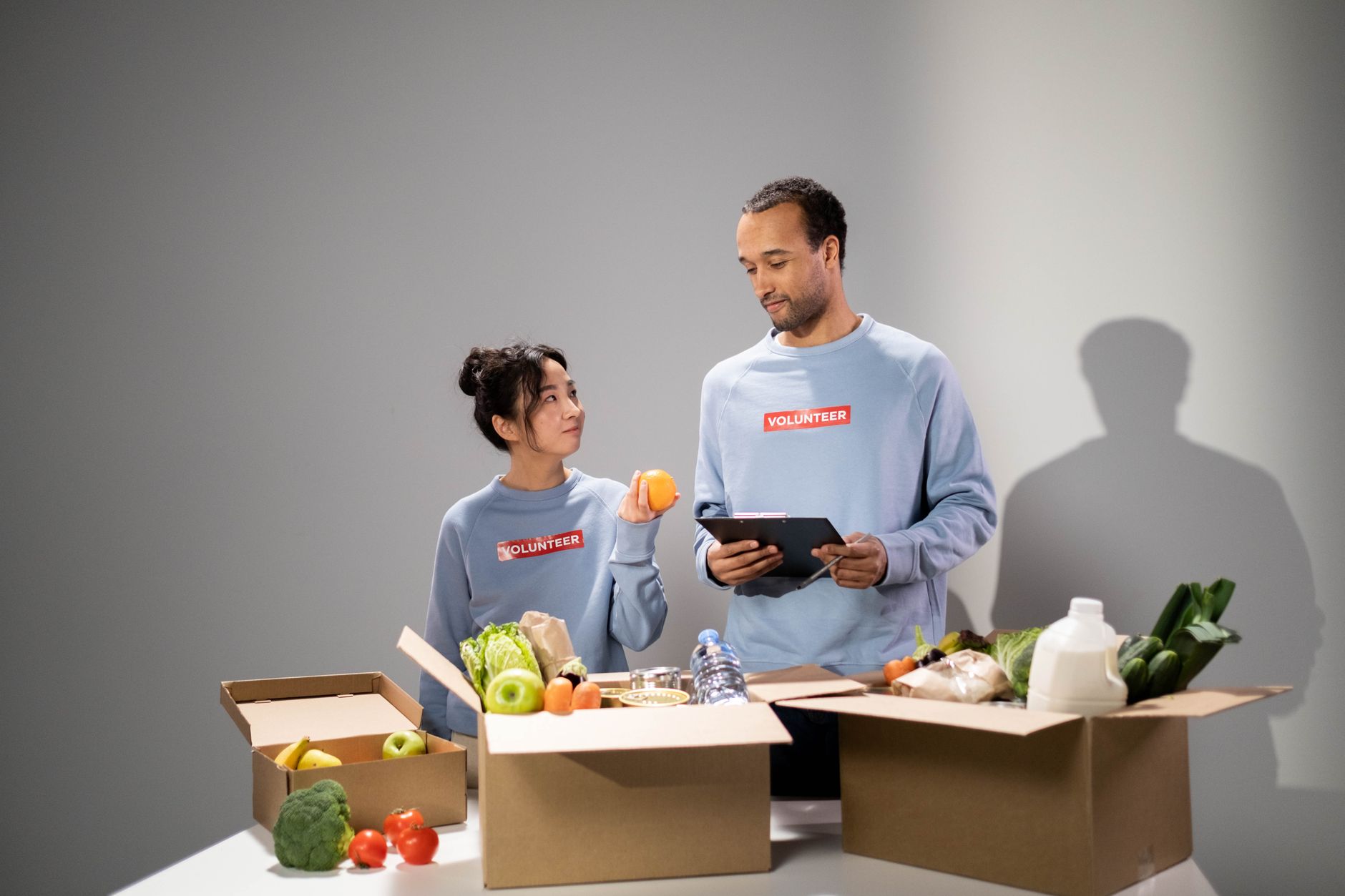
Nonprofits can create custom GPTs inside ChatGPT. Upload your past successful grant proposals, house style guide, and key statistics. Then the custom GPT will draft new content in your voice. This works without any coding. You can also set instructions to avoid certain phrases or always include your mission statement. A small development team can save ten hours per week after the initial setup.
Watch out for hallucinations. ChatGPT may invent statistics, program outcomes, or funding history. Always fact check every number and quote before sending anything to a funder. Also avoid pasting full donor names or addresses into public prompts. Use the Team or Business plan with data controls turned off for training. That keeps your donor data safer.

- Claude for Long Documents and Annual Reports
Claude from Anthropic is the best choice when you need to work with very long documents. The Pro plan costs $20 per month and provides a 200,000-token context window. That is roughly 150,000 words, enough to process a full annual report or several grant applications at once. Anthropic’s documentation explains the context window and usage limits in detail. See Anthropic’s documentation. Nonprofits that deal with lengthy program evaluations or legal contracts will find Claude more reliable than shorter context tools.
Claude excels at summarizing and comparing large files. Upload a 60 page request for proposals, a previous application, and your budget. Ask Claude to extract every requirement into a checklist and flag conflicts. It can also review your draft for tone and consistency with the funder’s language. For teams that already use other productivity software, this pairs well with best AI tools for productivity. The result is fewer missed deadlines and stronger final submissions.
Claude Projects let you group files and instructions for a specific program or campaign. For example, create a project for your annual gala with past speeches, sponsor lists, and seating notes. Then ask Claude to draft follow up emails to each sponsor segment. The context stays focused, which improves accuracy. Nonprofits can also upload their brand voice document and set project level instructions to keep all writing consistent.
Privacy is a strong point for Claude. Anthropic states that data submitted through its Business and API plans is not used to train models by default. For nonprofits handling sensitive beneficiary information, this matters. Still, do not treat any AI tool as a compliance guarantee. Review your data sharing agreements and limit access to staff who need it. Use the Projects feature to restrict file access where possible.

- Microsoft Copilot for Microsoft 365 Nonprofits
Microsoft Copilot is the natural pick if your nonprofit already uses Microsoft 365. Copilot appears inside Word, Excel, Outlook, Teams, and PowerPoint. The standard Copilot for Microsoft 365 add on is $30 per user per month. However, Microsoft offers donated and discounted licenses to eligible nonprofits through its nonprofit program. Many organizations can get core Microsoft 365 at little or no cost, then add Copilot for a fraction of retail. For similar options aimed at small teams, see best AI tools for small business.
In Excel, Copilot can analyze donor lists, flag lapsed donors, and suggest segmentation. In Outlook, it drafts replies to routine inquiries and summarizes long email threads. In Teams, it captures meeting action items and generates recap notes. This saves hours for development and program staff. A common workflow is to ask Copilot to pull all donor gifts above $500 from the last year and create a summary table.
Security is a key reason to choose Copilot over consumer tools. Copilot respects the permissions you already set in Microsoft 365. If a staff member cannot see a donor file in SharePoint, Copilot cannot expose it through a prompt. That gives nonprofits stronger control over sensitive data. You can also configure Copilot to not use your data for model training through enterprise settings.
The downside is cost when scaled across many staff. Start with a pilot group of three to five people. Measure time saved on grant reporting or donor email. Then expand only if the savings exceed the per seat cost. Nonprofits should also consider whether Copilot Pro at $20 per user per month meets their needs better than the full Microsoft 365 Copilot at $30.
- Google Gemini for Google Workspace and Ad Grants
Google Gemini is a strong free option for nonprofits that live in Google Workspace. Google AI Studio offers limited free access to Gemini 1.5 Pro with a 1 million-token context window. That means you can paste a massive grant archive or long policy document for analysis. Google for Nonprofits provides free Workspace for eligible organizations. For data heavy work, Gemini pairs well with best AI tools for data analysis.
Gemini works directly in Google Docs, Sheets, Gmail, and Meet. In Docs, you can ask Gemini to rewrite a program update for a board memo. In Sheets, it can generate formulas and clean messy data. In Meet, it creates meeting notes and action items. For nonprofits that run Google Ad Grants, Gemini can draft ad copy variations and summarize campaign performance from exported CSV files.
A useful workflow is to connect Gemini to your Google Drive and ask questions across multiple program reports. For example, ask how many clients were served in the last quarter compared to the previous year. Gemini can pull numbers from several Sheets or Docs and produce a short summary. This saves staff from manual cross checking.
Google states that Workspace data is not used to train its models. That is important for donor privacy. But the free AI Studio tier may have different terms. Check the data usage policy before uploading sensitive data. For public grant documents or program data, the free tier is excellent. For internal donor records, use a paid Workspace plan with a Gemini add on and review admin settings.
- Canva Magic Studio for Marketing and Visuals
Canva Magic Studio is the best design tool for nonprofits with no graphic designer. Canva for Nonprofits provides Canva Pro free for verified organizations. The retail price is $119.99 per year, so this is major savings. Magic Studio includes Magic Write, Magic Design, and AI image generation. See best AI tools for image generation for comparisons. Nonprofits can create social media graphics, annual report layouts, event flyers, and donor thank you cards quickly.
Magic Write is a text generator inside Canva. Highlight any text block and ask it to shorten, rewrite, or expand. For example, turn a 200 word program description into a 50 word Instagram caption. Magic Design takes a simple prompt like ‘annual report cover for a youth mentoring nonprofit’ and produces several complete layouts. You can then swap colors and fonts to match your brand kit.
The brand kit feature is especially useful. Upload your logo, set your fonts and colors, and every template stays on brand. Volunteers can produce professional materials without design training. This reduces the bottleneck of waiting for a designer or overworked communications staff. For nonprofits, consistent branding builds donor trust and recognition.
One red flag is AI generated images of people. Magic Media can create realistic faces that may misrepresent your community or imply endorsements. Avoid using generated photos of supposed beneficiaries or donors. Instead, use real photos from your programs or choose illustrations. Always review AI generated text for tone and factual accuracy before publishing.

- n8n for Workflow Automation
n8n is a workflow automation tool that can connect multiple AI services. The self-hosted Community Edition is free and includes unlimited workflows. The cloud plan starts around 20 euros per month, still affordable for small teams. n8n offers 220+ integrations, including Google Sheets, Gmail, Slack, and CRM systems. For technical staff, it is a powerful way to automate repetitive tasks. See best AI tools for developers for more technical options. Nonprofits can start with templates for donor acknowledgment emails or social media scheduling.
A common nonprofit workflow is donor follow up. When a new donation lands in your CRM, n8n can trigger a thank you email through Gmail, log the interaction in a spreadsheet, and create a task for the development team. With an AI node, it can generate a personalized first draft of the email based on the donor’s giving history. A human approves and sends the final version. This keeps the personal touch while cutting manual work.
Another use is grant deadline tracking. n8n can pull deadlines from a public Google Sheet or website and send Slack reminders. It can also collect data from program spreadsheets, summarize it with ChatGPT or Claude, and push the summary into a board report. The AI Agent node in n8n supports OpenAI, Anthropic, and Google models. That flexibility helps nonprofits choose the cheapest or most private model for each task.
The learning curve is steeper than clicking a button in ChatGPT. But n8n templates and a large community make onboarding faster. Start with one simple workflow, like sending a weekly summary email, before building complex multi step automations. Technical volunteers or a part time ops person can manage it. Avoid connecting sensitive donor data to cloud nodes unless you have reviewed the data flow and enabled proper authentication.
Red Flags & Warnings
- 🚨 Donor data privacy: never paste full donor lists into public AI tools. Use business or team plans with training disabled. For example, turn off chat history in ChatGPT Team or use Claude Business plan.
- 🚨 Hallucinated facts: AI may invent statistics, program outcomes, or funding history. Always verify every number and quote against your internal records before sending to a funder.
- 🚨 Hidden per-seat costs: free trials end and per user pricing adds up. Ask each vendor about nonprofit discounts before committing. Budget for annual subscriptions, not just monthly.
- 🚨 Over-automation of donor touchpoints: do not let AI send personal thank you notes without human review. A donor can tell when a message is generic. Use AI for drafts, not final sends.
- 🚨 Ignoring volunteer training: new AI tools fail without training. Run a pilot with three to five staff members first. Document best practices and privacy rules before wider rollout.
- 🚨 Accessibility and language gaps: AI may not handle every language or disability well. Test outputs with real beneficiaries. Have a human review materials for cultural sensitivity and plain language.
Frequently Asked Questions
Are there free AI tools for nonprofits?
Yes. ChatGPT, Claude, and Gemini have free tiers for basic use. Canva for Nonprofits is free for eligible organizations. n8n self-hosted Community Edition is free. Microsoft and Google also offer nonprofit grants for workspace tools.
Can AI write grant proposals?
Yes. AI can draft sections, synthesize program data, and adapt to funder guidelines. But you must fact check every claim and add human stories. Never submit a proposal without staff review.
Is donor data safe with AI tools?
Only if you use business or team plans that disable training on your data. Check each vendor’s data usage policy. Avoid free consumer plans for sensitive donor records because prompts may be used to improve models.
How do nonprofits get discounts on AI tools?
Apply through vendor nonprofit programs. Canva has Canva for Nonprofits. Microsoft and Google offer grants or donated licenses. OpenAI and Anthropic may provide discounts for verified organizations. Check eligibility documents and tax status.
What is the best AI tool for a small nonprofit with no tech staff?
Start with ChatGPT or Canva Magic Studio. Both have simple interfaces and built-in templates. Use the free tiers first. Skip advanced automation tools like n8n until you have a technical volunteer or staff member.
Can AI help with donor management?
Yes. AI can summarize donor histories, draft personalized emails, and segment lists in Excel or Sheets. But connect it to your CRM through a secure integration or have a human review every outgoing message.
What Should You Remember?
- Start with a pilot. Pick one workflow like grant drafting or donor email. Measure hours saved before scaling to other teams.
- Use nonprofit discounts. Canva for Nonprofits, Google for Nonprofits, and Microsoft grants cut costs to zero or low rates.
- Protect donor data. Use business plans with no training on your prompts. Never paste sensitive lists into free public tools.
- Fact check everything. AI hallucinations can damage funder trust. Always verify statistics and quotes before sending.
- Automate repetitive tasks. Use n8n to sync data and send templated updates. Keep human approval for donor-facing messages.
- Train your team. Short workshops on prompt writing and privacy prevent costly mistakes and data leaks.
- Measure impact, not just output. Track hours saved and error rates. Report these to your board and funders.
This article is for general information only and does not constitute professional advice. Product capabilities, pricing, and market figures change frequently. Always verify current details through vendor documentation and primary sources.
Some links on this page may be affiliate links, which means we may earn a commission if you click through and make a purchase — at no additional cost to you. Read our full disclosure.