AI music tools have moved far beyond novelty loops and robot vocals. In 2026, producers at every level use machine learning to master tracks, separate stems, generate chord patterns, and even brainstorm lyrics. The challenge is not finding AI audio software. The challenge is knowing which tools fit a real production workflow. We tested more than a dozen options for this guide, focusing on speed, sound quality, and price transparency. If you are also automating other parts of your creative business, check our guide to the best AI tools for productivity for ideas that go beyond the studio.
Music production has become a hybrid job. You still need taste, arrangement skills, and an ear for groove. But AI now handles many technical bottlenecks. Stem separation used to take hours with phase cancellation tricks. Today you can upload a full mix and get clean vocal, drum, and bass stems in minutes. AI mastering tools can match reference tracks and deliver loud, polished masters without a dedicated engineer.
We looked for tools that solve specific producer problems, not just toys. Some tools are best for idea generation. Others are built for final polish or for repurposing old sessions. We also checked free tier limits and standalone pricing, because producers often start with tight budgets. Several tools on this list have free plans that are genuinely useful, while paid plans add speed, stem counts, or commercial rights. This guide gives you the exact workflow order, from raw audio cleanup to final export and lyric support.
Here is how to approach this guide. We ranked seven tools by how often they show up in a real studio day, not by marketing buzz. Each step below explains what the tool does, how to use it, and where it fits in a production chain. At the end, you will find warnings and an FAQ to avoid the usual AI music pitfalls.
What You’ll Need
- A DAW such as Ableton Live, Logic Pro, or FL Studio
- A decent pair of studio monitors or headphones
- A MIDI keyboard for generating and editing MIDI
- High-quality source audio files, ideally WAV or FLAC
How Do You Best AI Tools for Music Producers in 2026?
- 1. LANDR for AI mastering and distribution
LANDR has become the default AI mastering tool for a reason. It analyzes your mix, applies EQ, compression, stereo width, and loudness, then returns a polished master in minutes. You upload a WAV or MP3, choose a style reference, and set loudness targets for streaming platforms. The free plan gives you two low-quality MP3 masters per month. That is enough to test the algorithm before paying. We recommend starting with a reference track that matches your genre, because the AI leans heavily on the sonic profile of your chosen reference. LANDR also handles distribution. You can release finished masters to Spotify, Apple Music, and other platforms directly from the same dashboard. This matters for producers who want to keep royalties and release schedules in one place. If you sell beats or run a small label, the time saved on distribution has real value. For more on running a music business with AI, see our guide to the best AI tools for small business. The catch is that distribution costs are separate from mastering plans, so read the payout terms before you commit. Common mistakes include uploading a heavily limited mix and expecting the AI to fix distortion. AI mastering cannot undo clipping or bad gain staging. Feed LANDR a mix with headroom around negative 6 dB for the best result. Use the preview feature to compare your master with the original before downloading. If the low end feels bloated, go back and fix the mix. LANDR will not magically clean mud. It will only enhance what is already there. LANDR works best as a final polish tool, not a mixing replacement. Pair it with a solid mix bus and monitor checks. Most producers use LANDR for demos and quick releases, then hire a human engineer for critical album work. Start with the free tier, then move to a paid plan if you need high-resolution WAV masters and more monthly slots.

- 2. iZotope Ozone 11 for AI-assisted mixing and mastering
iZotope Ozone 11 is a full mastering suite, but its AI Assistant is what makes it stand out. The Assistant listens to your track, identifies tonal balance issues, and suggests a custom mastering chain. You can then adjust each module by hand. The interface feels less like a black box than LANDR, which makes it better for producers who want to learn mastering. The tonal balance control compares your track to genre-specific targets, so you can see exactly where your low end or highs sit relative to commercial releases. Ozone 11 includes modules like Maximizer, Dynamic EQ, Vintage Limiter, and Stereo Imager. You can use it as a standalone application or as a plugin inside your DAW. The AI Assistant works on a few seconds of audio and generates a starting point. From there, you can bypass or tweak any module. That hybrid approach teaches you why a master gets brighter or tighter. It also keeps you from sounding like every other auto-mastered track, because you are still making final decisions. One common mistake is running Ozone on a mix that has not been gain staged. Just like LANDR, Ozone cannot repair clipping. Set your master output to peak around negative 6 dB before opening Ozone. Use the reference panel to load two or three commercial tracks. Listen at matched loudness. Then decide whether the AI suggestions actually improve the song. If the AI pushes the limiter too hard, lower the threshold or reduce the input gain. The final master should sound competitive, not crushed. Ozone 11 is pricier than a streaming mastering service, but it is a one-time purchase or subscription through iZotope’s bundle. If you already use Neutron for mixing, Ozone integrates well. For producers who want more mixing control, consider Neutron first, then finish with Ozone. The AI Assistant can also run on individual stems if you route them through the standalone app.
- 3. Moises for stem separation and practice
Moises is the stem separation tool we reach for first. Upload any song or audio file, and Moises splits it into vocals, drums, bass, and other instruments. The algorithm uses AI to isolate sources in a way that sounds clean enough for remixes, practice, and sampling. The free plan lets you upload up to five tracks per month, which is plenty for trying the tool. Paid plans raise that limit and unlock higher-quality audio export. The key is to upload a full mix, not a heavily compressed MP3, because separation artifacts are more obvious on low-quality sources. Stem separation used to be a studio task that required hours of manual editing. Moises changes that by processing a track in under a minute for most files. Producers use it to extract vocals for a remix, pull a drum groove to study, or isolate a bass line to replay. Video editors who need to remove music from dialogue should check the same audio cleanup workflow in our guide to the best AI tools for video editing. The crossover between audio and video post-production is bigger than many people think. A common mistake is expecting perfect stems from a dense mix. The algorithm works well, but it is not magic. Heavy reverb, stereo delays, and oversized synth pads can bleed across stems. To get cleaner results, use the highest-quality source file you can find, preferably a WAV or FLAC. Moises also has a metronome and pitch changer, which makes it useful for practice. You can slow down a solo, change the key, and loop a section without affecting the original file. That alone makes it worth the free tier for instrumentalists.

- 4. AIVA for AI composition and orchestral scoring
AIVA has been around for years and still leads AI composition for producers who need full arrangements. It generates sheet music, MIDI, and audio from style presets like cinematic, electronic, pop, and jazz. You set the tempo, key, duration, and instrumentation, then let AIVA create a composition. The free plan gives you limited downloads, so it is best for testing ideas. Paid plans unlock commercial licensing and more generation slots. That licensing detail matters if you plan to release the tracks. AIVA is especially useful for media composers who need orchestral sketches fast. Instead of staring at a blank piano roll, you can generate five variations and pick the best one. Then export MIDI into your DAW and replace instruments with your own libraries. The AI does not have taste. It has patterns. Your job is to shape those patterns into something that sounds like you. One common mistake is using AIVA output as a finished track. The generated audio can sound stiff and synthetic. Treat AIVA as a sketchpad, not a final render. Export the MIDI, edit velocities, humanize timing, and layer your own sounds. Also check the commercial terms before you publish. AIVA’s paid plans grant a license, but the terms can change, so save a copy of the license page when you export. That protects you if a client asks about ownership.
- 5. Orb Producer Suite 3 for AI MIDI generation
Orb Producer Suite 3 is a set of plugins that generate chords, melodies, bass lines, and arpeggios from AI logic. It runs inside your DAW and feeds MIDI directly into your existing instruments. That is a big advantage because you keep your sound library and mixing chain. You choose a key, scale, mood, and complexity, then Orb creates patterns you can edit in the piano roll. The AI is genre-aware, so a trap pattern will feel different from a cinematic progression. It is a fast way to break out of the same old chord shapes. Orb Producer works best when you use it to start an idea, not finish one. Generate a chord progression, then drag the MIDI into your session. Mute the AI, change a few notes, and build your own hook. The plugin also includes a multi-format MIDI export, so you can use generated parts in any DAW or even in notation software. If you struggle with music theory, Orb helps you test ideas without knowing every interval. Common mistakes include leaving the AI patterns untouched. The result will sound generic, because the patterns come from a model trained on common progressions. Use Orb to generate three or four options, then combine the best parts. Change the rhythm, invert the chords, or transpose a melody. Also watch your MIDI channel routing. Orb sends MIDI on a chosen channel, so make sure your instrument track is set to receive it. If you hear no sound, check the plugin’s output and your DAW’s monitoring settings.
- 6. Google MusicFX for experimental sound generation
Google MusicFX is an experimental AI tool that generates audio from text prompts. You type a description like ‘warm lo-fi piano with vinyl crackle at 80 BPM’ and MusicFX returns a short audio clip. It lives inside Google’s AI Test Kitchen and is free to use with a Google account. The tool is best for texture beds, transitions, and sound design inspiration. It is not a full track generator, but it can spark ideas for samples or background layers. You can learn more about Google’s broader AI efforts at Google AI. MusicFX works differently from MIDI generators. It creates audio from scratch, so you do not get editable stems or MIDI. That limits its use in a final mix, but it is excellent for creating ambience, risers, or unique one-shots. Download the audio and drop it into your sampler or DAW. Layer it under a synth pad or reverse it for a transition. Producers who want to compare Google’s AI with OpenAI’s tools may also want to read our breakdown of ChatGPT vs Gemini, which covers text and multimodal use cases. One caution is that MusicFX output can be unpredictable. The AI may not follow your prompt exactly, especially for complex rhythms or specific vocal lines. Use short, concrete descriptors. Include tempo, instrumentation, and mood. Do not expect a full song structure. Keep the clips short and treat them as raw material. Also check the usage terms in AI Test Kitchen, because experimental tools can change or shut down without notice. Download any good results immediately.
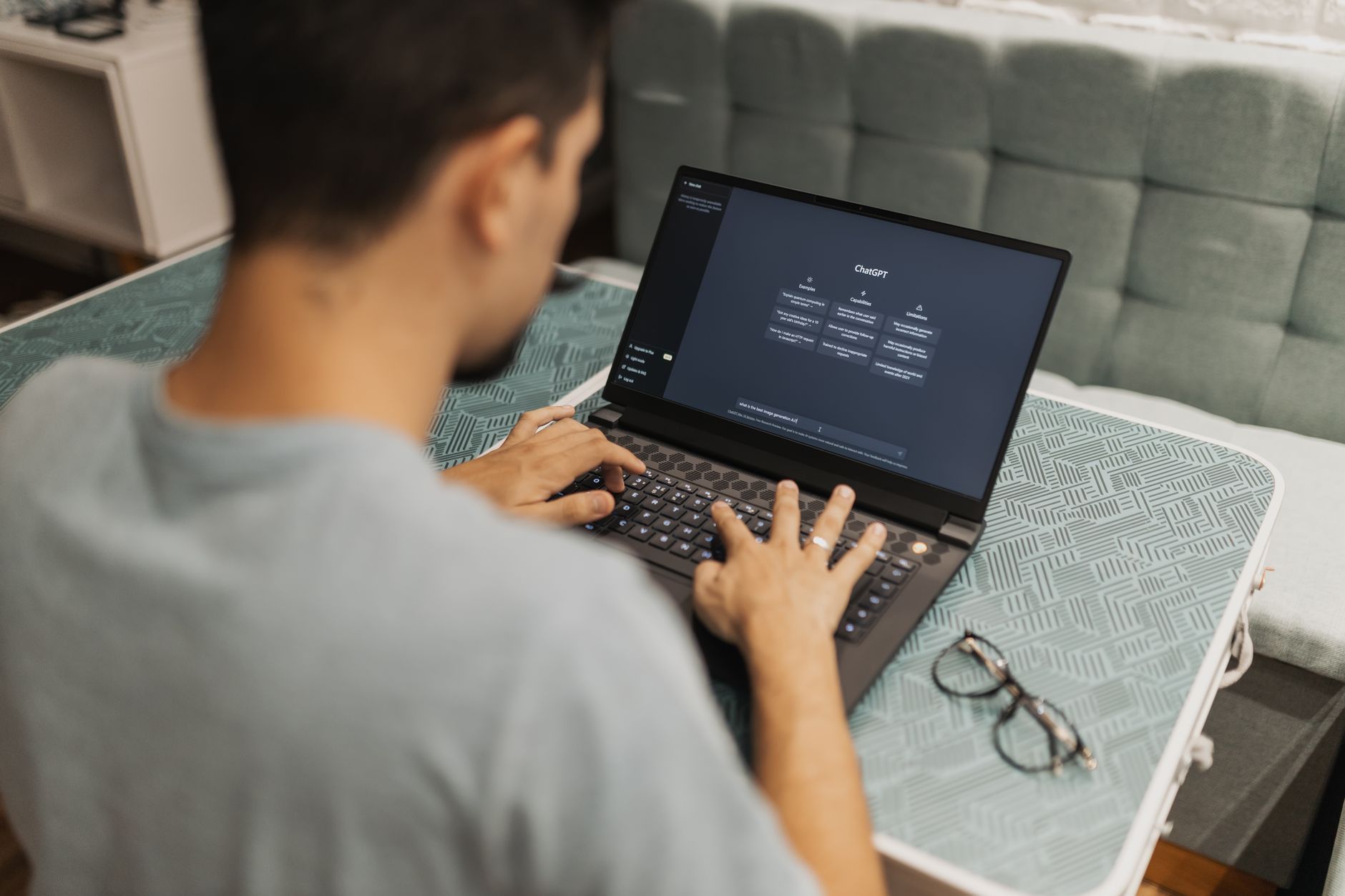
- 7. ChatGPT for lyrics, song structure, and production prompts
ChatGPT might not be an audio plugin, but it has become a daily tool for many producers. You can use it to draft lyrics, suggest song structures, write social posts for releases, and troubleshoot DAW issues. OpenAI’s ChatGPT Plus plan costs $20 per month at this writing and includes access to a model with a 128K token context window. That context window means you can paste a long lyric sheet, a chord chart, and production notes in one prompt without losing track. See OpenAI for current pricing and model details. The best results come when you treat ChatGPT as a collaborator, not a ghostwriter. Give it a specific genre, tempo, key, and emotional target. Ask for three chord progressions with Roman numeral analysis. Then ask it to write a verse and chorus in a given rhyme scheme. You can iterate quickly by saying ‘make the bridge darker’ or ‘rewrite the second verse in past tense.’ Common mistakes include using generic prompts like ‘write a sad song.’ The output will sound like a bad greeting card. Instead, give constraints: artist references, syllable count, narrative arc, and melodic contour. Paste your existing lyrics and ask for punch-up suggestions. For release strategy, ask for a three-week rollout plan with content ideas. If you also market your own music, check our article on the best AI tools for marketers for automation ideas around release campaigns. Keep in mind that ChatGPT may reproduce common phrases, so always rewrite key lines to keep your voice.
Red Flags & Warnings
- 🚨 Do not upload uncleared samples or full songs to AI tools that store your audio. Check privacy policies before uploading client work or unreleased tracks.
- 🚨 AI mastering cannot fix clipping or distorted mixes. Always leave around negative 6 dB of headroom before processing.
- 🚨 Free tiers often limit commercial use. Read the licensing terms before you release tracks made with AI-generated stems, MIDI, or audio.
- 🚨 Stem separation tools create artifacts on low-quality MP3s. Use WAV or FLAC sources for cleaner results.
- 🚨 Do not rely on AI for final lyrics or melody hooks without heavy editing. AI tends to produce generic, overused phrasing.
- 🚨 Back up your generated files immediately. Experimental AI tools can change, limit, or remove features without notice.
Frequently Asked Questions
Is AI music production legal for commercial releases?
It depends on the tool’s license. Many paid AI music tools grant commercial rights for generated content, but free tiers often restrict monetization. Always read the terms before releasing a track. For stem separation, you still need permission for the original recording if you did not create it.
Which AI mastering tool is best for beginners?
LANDR is the easiest starting point because you upload a track and get a master in minutes. The free plan lets you test with low-quality MP3 output. iZotope Ozone 11 is better if you want to learn mastering and have more control over the final sound.
Can AI replace a human mixing engineer?
No. AI can handle repetitive technical tasks and give you a solid starting point, but it cannot hear emotional intent or make taste decisions. The final 10 percent of a mix still depends on human judgment. Use AI as an assistant, not a replacement.
What is the best free AI tool for music producers?
Google MusicFX is free to use and great for sound design ideas. Moises offers a free plan with limited stem uploads. ChatGPT has a free tier for lyric and production help. Each free plan has limits, so test them against your workflow.
Do AI stem separation tools work on any song?
They work best on clean, full mixes with high-quality sources. Dense mixes, heavy reverb, and low-bitrate MP3s can cause audio artifacts. For best results, use a WAV or FLAC file and accept that some bleed across stems is normal.
How can I protect my original music when using AI tools?
Check the tool’s privacy policy before uploading unreleased work. Use offline tools or paid plans that do not train on your audio. Keep dated project files and exports to prove ownership. If you use AI-generated content, save license terms and generation history.
What Should You Remember?
- Start with free tiers before paying. LANDR, Moises, and ChatGPT all let you test core features without a subscription. Upgrade only when you need higher resolution or commercial rights.
- Leave headroom before AI mastering. Keep your mix peak around negative 6 dB to avoid clipping. AI cannot fix distortion that is already baked in.
- Use AI as a sketchpad, not a final render. Generate ideas, then edit MIDI, swap sounds, and humanize timing. AI output is a starting point, not a finished track.
- Check licensing before release. Free tiers often restrict commercial use. Save license pages and generation history to protect client work.
- Feed stem separation tools high-quality audio. WAV or FLAC sources produce cleaner stems than low-bitrate MP3s.
- Combine text and audio AI tools. Use ChatGPT for lyrics and release strategy, then use audio tools like LANDR and Ozone for the final mix and master.
This article is for general information only and does not constitute professional advice. Product capabilities, pricing, and market figures change frequently. Always verify current details through vendor documentation and primary sources.
Some links on this page may be affiliate links, which means we may earn a commission if you click through and make a purchase — at no additional cost to you. Read our full disclosure.