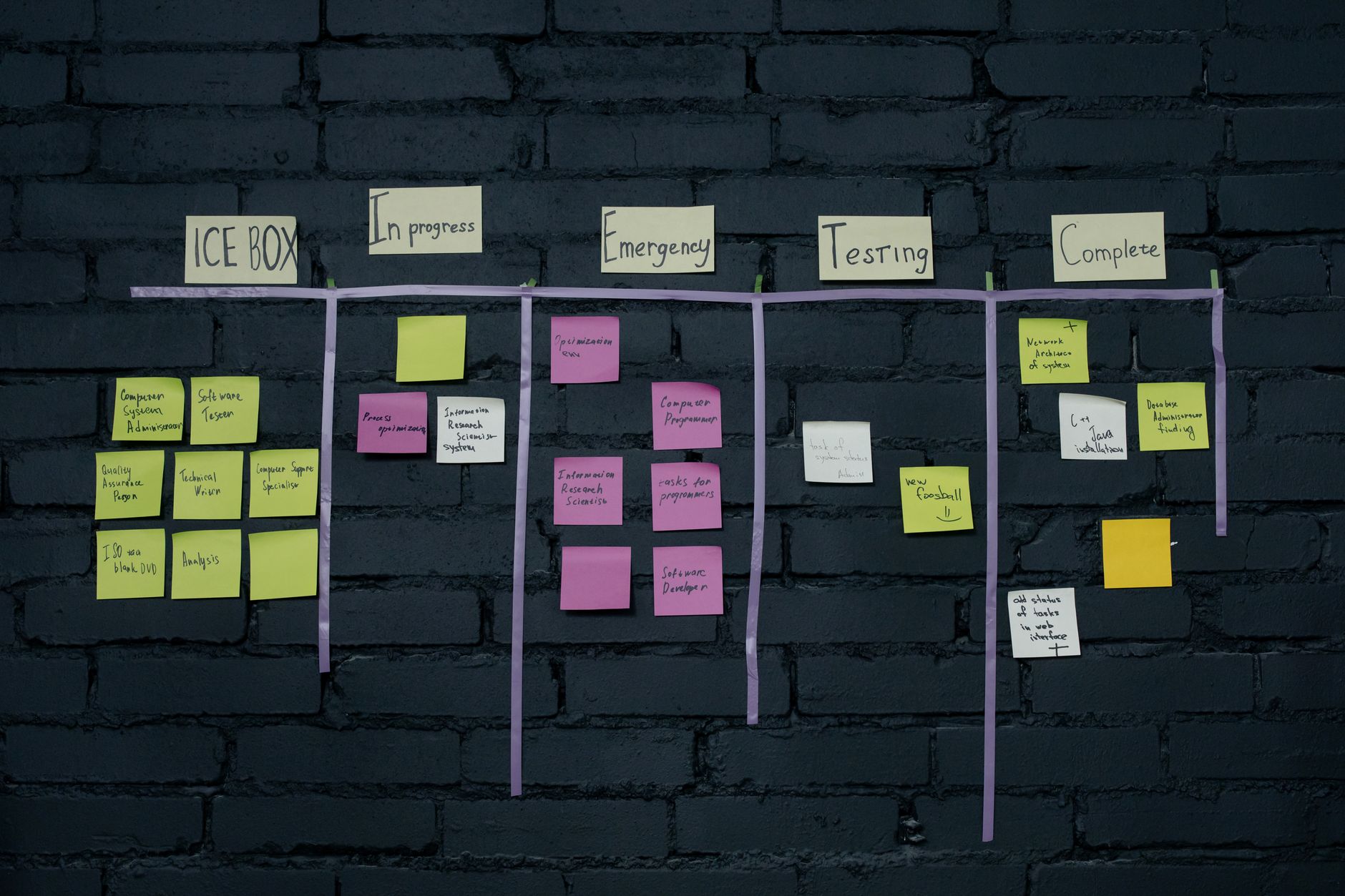
You have probably tried ten different project trackers. The problem is not the tool. The problem is the gap between what you plan and what actually happens. In 2026, AI tools close that gap. They summarize standups, catch missed tasks, and reschedule your calendar before you even notice the slip. This guide ranks the tools I would pick for small teams that need to ship on time. I have used most of these in real projects. Some are free. Others justify the price with saved hours. If you want a broader stack, see our best AI tools for productivity.
The market is noisy. Every vendor now slaps ‘AI’ on a settings page. I only recommend tools that can act on project data, not just chat about it. For example, Notion AI can turn raw notes into a sprint board. Asana Intelligence can write status updates from actual task activity. The best AI for project management does not replace your brain. It removes the busywork of status meetings, manual updates, and chasing people for answers.
Start with one core tool. Then add an AI layer that connects your meetings, tasks, and calendar. The stack I recommend below costs anywhere from $0 to about $60 per user per month. You can run a small team on free tiers first. If you are new to AI in business, read our how to use AI for business guide before you buy anything.
I will walk through seven tools in order. You do not need all seven. Pick three to start. Each section includes pricing, free-tier limits, and the mistakes I see teams make. At the end, I list warnings and answers to common questions. Let’s get into it.
What You’ll Need
- Notion AI
- Asana Intelligence
- Motion
- Claude
- Fireflies
- Zapier
- Microsoft Copilot
How Do You Best AI Tools for Project Management in 2026?
- Start with Notion AI for your single source of truth
Notion is the brain of many project teams, and Notion AI makes that brain useful. Notion’s free plan gives individuals unlimited pages and blocks, but you need a paid plan to add Notion AI. The AI add-on costs about $10 per member per month on top of your workspace plan. I have used Notion AI to turn a messy project brief into a clean sprint board with assigned owners and due dates. It works best when you already structure your projects with a database instead of a wall of text.
The reason Notion AI earns the top spot is that it lives inside the tool your team already uses. You can ask it to summarize a long project doc, draft risk logs, or generate a set of tasks from meeting notes. For example, paste a client call transcript into Notion and ask for ‘action items with owners and deadlines.’ Notion AI will output a checklist you can drag into your task database. This saves about 20 to 30 minutes per meeting.
Still, Notion AI is only as good as your setup. If every project lives in a different page with no consistent properties, the AI will produce generic results. Before you add AI, spend one hour cleaning your workspace. Create a task database with status, owner, due date, and priority fields. Then link project pages to that database. For a deeper look at tools that help with daily operations, see our best AI tools for small business guide.
Once your Notion space is clean, the next step is to bring real-time task activity into view. That is where Asana Intelligence shines. It pulls status updates and workload signals from your task history, not just static pages.
- Layer Asana Intelligence for task triage and status rollups
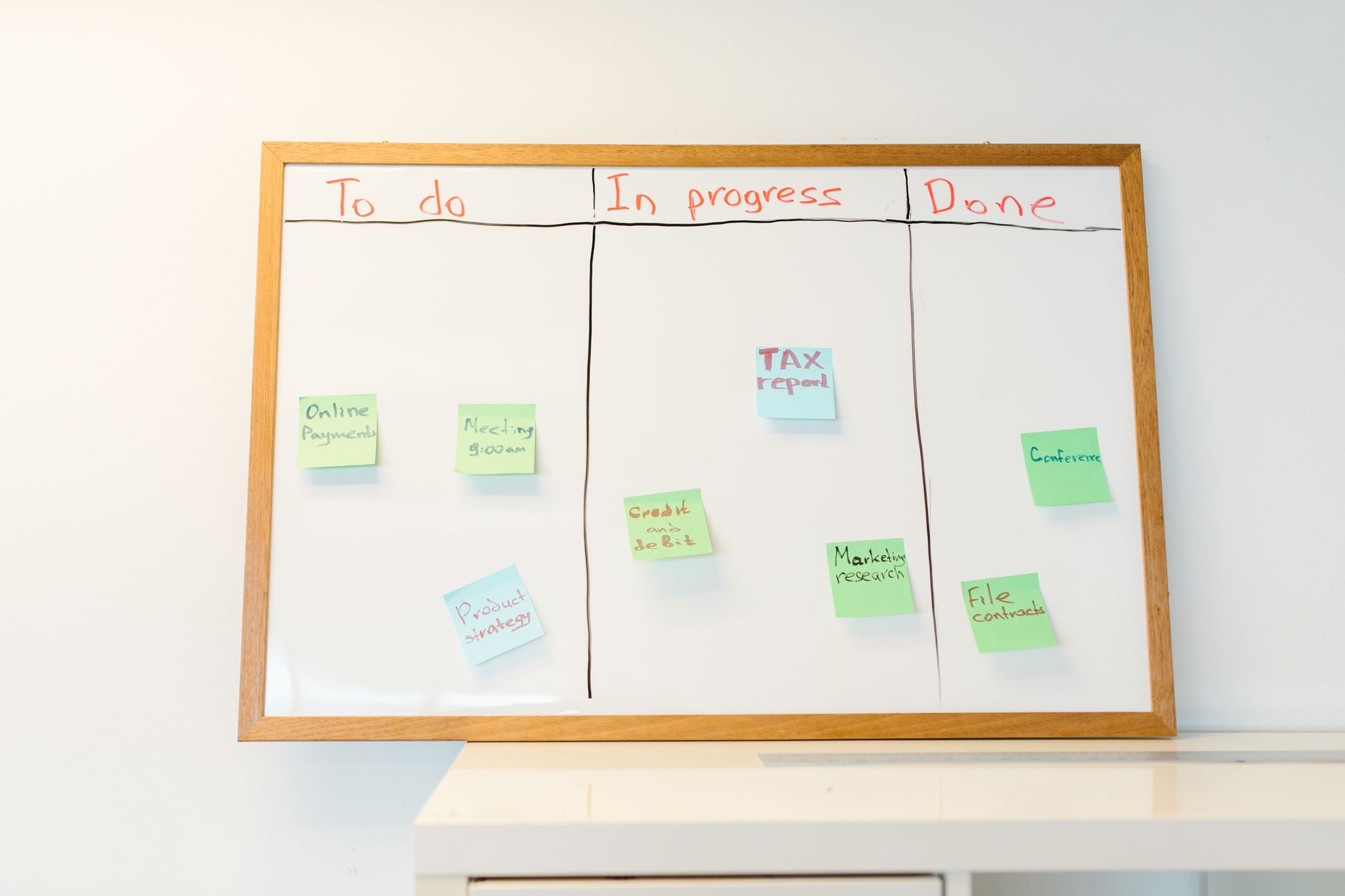
Asana has shifted from a simple task list to a full project command center. Its free plan supports up to 10 teammates, which is enough for most early stage teams. Asana Intelligence is part of paid tiers, which start around $10.99 per user per month billed annually. The AI features include smart status updates, project digests, and natural language task creation. I like that it summarizes what changed since last week without you writing a single line.
The feature I use most is smart status. Asana Intelligence pulls data from completed tasks, due date changes, and comments. It then drafts a status update that says what is on track, what is at risk, and what needs attention. You can edit the draft before sharing. This is different from a chatbot because the answers are grounded in your actual project data. The tool can also create tasks from a sentence like ‘set up QA for the mobile release by Friday.’ That reduces the fiddly work of entering fields.
One warning. Asana Intelligence works best when your team logs work in Asana consistently. If half your team updates tasks in Slack and the other half uses email, the AI summary will be incomplete. For teams that use Asana as the primary tracker, it is a solid step up. If you are choosing between AI assistants, check our ChatGPT vs Claude comparison for more context.
The next tool solves a different problem: your calendar. While Asana tracks tasks, it does not automatically find time to do them. Motion does.
- Use Motion to auto-schedule your project calendar
Motion is the closest thing I have found to an AI chief of staff for your calendar. Its individual plan costs about $19 per month when billed annually. Team plans cost more. Motion looks at your tasks, deadlines, and meetings, then blocks time on your calendar to actually do the work. It reshuffles those blocks when something urgent lands. This is not a static to-do list. It is a living schedule.
The first week with Motion feels a little strange. You hand control of your calendar to an algorithm. The trick is to set clear task durations and hard deadlines. Motion then protects your deep work blocks and moves less critical tasks to later in the week. I have seen it save about four to five hours per week in schedule management alone. Project managers often spend that time chasing people and rearranging calendars manually.
Motion works best for individual contributors and team leads who control their own time. It is less useful for large cross-functional initiatives where many calendars must agree. Still, as a PM, you can use Motion to protect your own planning time. Then you have more energy for the project strategy work.

- Turn Claude into your project brief and risk reviewer
Claude, from Anthropic, is not a project management tool on its own. But it is the best AI I have used for reviewing project briefs, identifying risks, and turning messy requirements into clear scope. According to Anthropic’s documentation, Claude can process up to 200,000 tokens in a single prompt. That means you can paste a 50-page requirements doc and ask for a risk register. Claude Pro costs $20 per month and unlocks more usage plus the larger context window.
I use Claude at two points in every project. First, when a stakeholder sends a vague brief, I ask Claude to extract assumptions, dependencies, and missing decisions. It returns a one-page scope summary I can send back for approval. Second, before a big launch, I paste the project plan and ask for risks nobody has mentioned. It often catches things like single points of failure and unclear owners.
The catch is that Claude can still hallucinate. If you ask it to invent a schedule from thin air, it will. Always ask for citations or specific line references from the document you provided. Do not let it pull dates from memory. For a deeper comparison between Claude and ChatGPT, see our ChatGPT vs Claude article. In my testing, Claude is slightly better at long document reasoning, which matters for project briefs.
- Capture meeting action items with Fireflies
Meetings are where project plans go to die. People nod, agree, and then forget what they promised. Fireflies solves this by joining your video calls, recording them, and generating a transcript with action items and decisions. The free tier includes 800 minutes of transcription storage, which is enough for a small team testing the water. Paid plans start around $10 per user per month for unlimited transcription and better AI summaries.
Fireflies works with Zoom, Google Meet, Microsoft Teams, and Webex. After each call, you get a searchable transcript with a summary at the top. The AI can assign speakers, list action items, and even detect questions. I like the ‘ask Fireflies’ feature. You can ask a question like ‘what did Priya say about the launch date?’ and it answers from the meeting audio. That is faster than replaying a recording.
One thing to check is your team’s comfort with recording. Some clients or colleagues may not want every call stored. Set clear rules. You can enable automatic recording only for internal meetings. Use Fireflies to capture decisions, not to police people. Once you have reliable meeting action items, the next step is to connect them to your other tools automatically.

- Automate handoffs with Zapier
Zapier is the glue that turns all these AI outputs into action. It connects over 8,000 apps, including Asana, Notion, Slack, Gmail, and Google Sheets. The free plan gives you 100 tasks per month, which is enough for one or two lightweight automations. Paid plans start at about $19.99 per month billed annually. I use Zapier to take a Fireflies summary and create tasks in Asana automatically.
A simple automation looks like this. Fireflies finishes a meeting and saves the action items. Zapier watches for that event. Then it creates a task in Asana with the action item text as the title and the speaker as the assignee. You can also send a Slack message to the project channel. This removes the manual step of copying action items from one app to another. It works in the background while you move to the next meeting.
The mistake most people make is building too many Zaps before they understand their workflow. Start with one high-frequency handoff, like meeting notes to task tracker. Run it for two weeks. Then add a second automation. If you want more advanced automation ideas for developers and technical teams, see our best AI tools for developers guide. Zapier is powerful, but it is not a project manager. It only moves data.
- Consider Microsoft Copilot for enterprise project visibility
Microsoft Copilot sits inside Word, Excel, PowerPoint, Teams, and Outlook. If your company already pays for Microsoft 365, Copilot adds AI on top for $30 per user per month. It can join Teams meetings, generate recap notes, and answer questions across your emails and files. The big advantage is that it reads data from the same tools your team already uses all day. You do not need to copy project data into another app.
Copilot shines in enterprise settings where projects span many teams and files. You can ask ‘What are the open risks for Project Falcon?’ and it will search across your SharePoint, emails, and meeting transcripts. It then writes a short answer with citations. That is useful for PMs who need a quick pulse check before a steering committee meeting. Microsoft’s approach is grounded in your Microsoft Graph data, so the answers come from your own workspace, not general web knowledge.
The downside is cost and setup. $30 per user per month is real money for a 20-person team. You also need clean permissions and data governance. If people have messy OneDrives and unlabeled files, Copilot’s answers will be unreliable. Start with a pilot group of two or three PMs before rolling it out widely.
Red Flags & Warnings
- 🚨 Never let an AI write a status update without reviewing task data first. If your team does not update the tool, the summary will be wrong.
- 🚨 Watch free-tier automation limits. Zapier’s free plan only runs 100 tasks per month. A single workflow can burn through that in a day.
- 🚨 Do not auto-connect every integration. Review what data each app can read before granting access. AI tools often request broad calendar and email scopes.
- 🚨 Verify AI-generated action item owners and due dates. Meeting transcripts can misattribute speakers. A wrong assignee creates more confusion than no assignee.
- 🚨 Do not replace human check-ins with AI summaries. Use AI to prepare the update, then have a 10-minute call to discuss blockers.
- 🚨 Be careful with meeting recording consent. Some regions require two-party consent. Set a clear policy and use AI recording only for agreed meetings.
Frequently Asked Questions
Is an AI project management tool worth it for a small team?
Yes, if you pick one core tool and one automation layer. A free tier like Asana for 10 users plus Zapier’s 100 monthly tasks can save a few hours a week. The value comes from reducing status meetings and manual copying, not from replacing a human PM.
Can AI actually assign tasks automatically?
Yes, with rules and guardrails. Tools like Zapier can turn meeting action items into assigned tasks. Asana Intelligence can suggest owners based on past assignments. But you should review auto-assignments for the first few weeks. AI can misjudge workload and context.
What is the best free AI tool for project management?
Start with Notion’s free plan, which includes unlimited pages for individuals. Add Fireflies’ free tier for 800 minutes of meeting transcription. Then use Zapier’s free 100 tasks per month to connect them. You can run a small pilot without paying anything.
How do I stop AI from making up project updates?
Ground the AI in your own data. Use tools like Asana Intelligence or Microsoft Copilot that pull from your task and file history. Always ask for source links or citations. When using Claude or ChatGPT, paste the actual project docs and ask for specific references.
Does Claude or ChatGPT work better for project planning?
Claude is slightly better for long documents and risk review because of its 200K token context window. ChatGPT is more flexible for quick brainstorming and has stronger multimodal features. For project briefs and requirements docs, I prefer Claude.
Can I use AI to run daily standups?
Yes, but keep a human facilitator. AI can collect async updates via tools like Fireflies or Asana Intelligence and summarize blockers. Then a 10-minute sync can focus on decisions. Do not let AI run the whole meeting. It cannot read the room or resolve team conflict.
What Should You Remember?
- Start with one core AI tool. Notion AI or Asana Intelligence gives you a smart planning layer without switching apps.
- Use AI on real data. Tools like Asana Intelligence and Microsoft Copilot pull from your tasks and files, not general web knowledge.
- Automate handoffs first. Connect Fireflies to Asana or Notion with Zapier to eliminate manual action item copying.
- Protect deep work with Motion. It auto-schedules blocks so deadlines do not get squeezed out of your calendar.
- Review AI outputs before sharing. Always verify owners, dates, and status updates to avoid misleading stakeholders.
- Respect free-tier limits. Asana free supports 10 users, Zapier free runs 100 tasks monthly, and Fireflies free stores 800 minutes.
This article is for general information only and does not constitute professional advice. Product capabilities, pricing, and market figures change frequently. Always verify current details through vendor documentation and primary sources.
Some links on this page may be affiliate links, which means we may earn a commission if you click through and make a purchase — at no additional cost to you. Read our full disclosure.