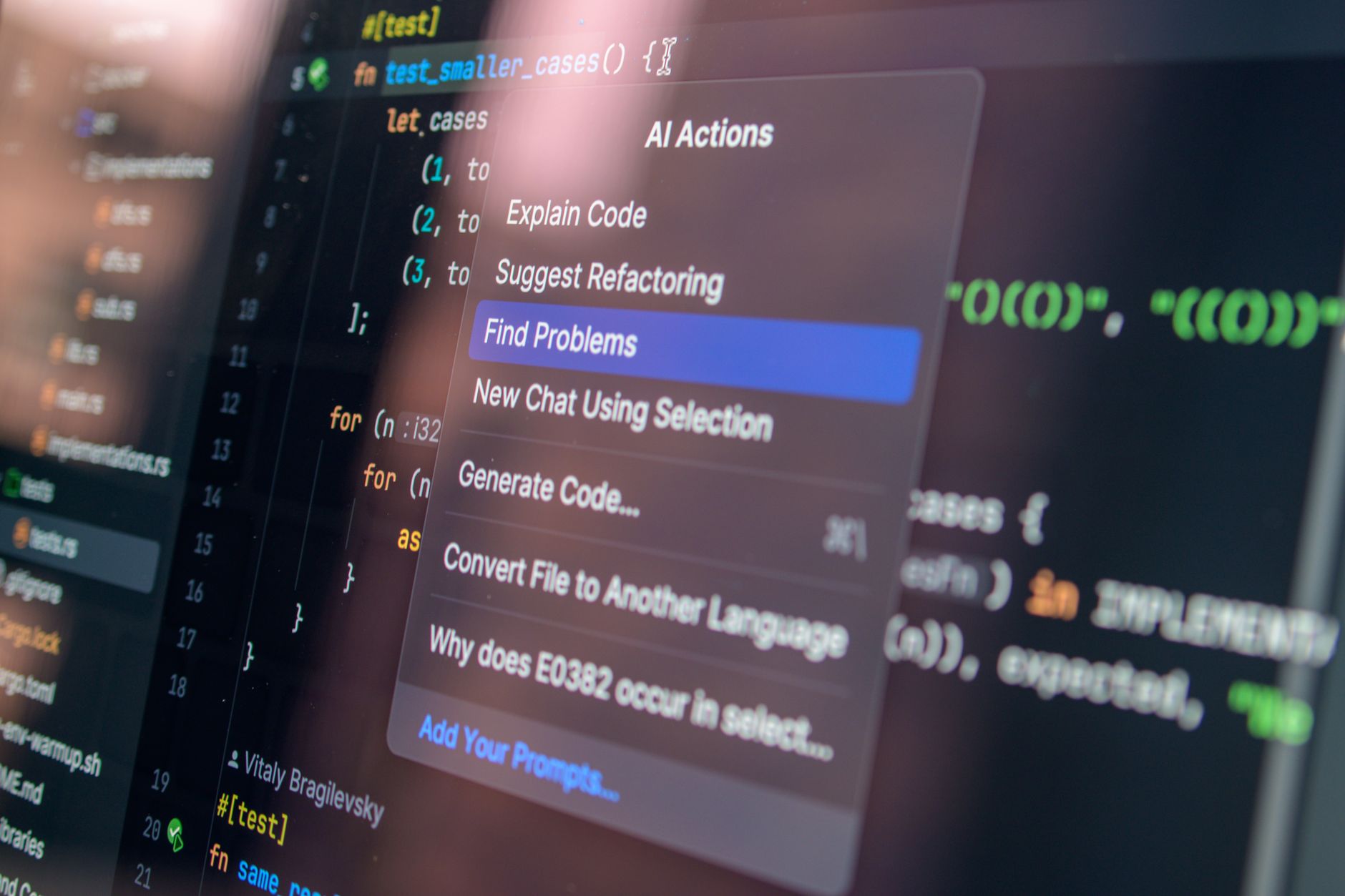
AI coding has moved from autocomplete to multi-file editing. In 2026, you can point an assistant at a whole repository and ask for a feature. That changes how you plan, review, and ship code. But it also raises new risks about security and technical debt. This guide shows a practical workflow. It starts with choosing the right tool. If you want a broader comparison, see best AI tools for developers.
Most tools now use large context windows. Some accept 1 million tokens or more. That means you can paste full files, not just snippets. Still, more context is not always better. You need to learn what to include and what to leave out. The best developers treat AI like a fast junior teammate. You give clear specs and review everything.
Free tiers have changed too. GitHub Copilot offers limited free completions. Claude Code has a free plan with daily limits. Cursor has a free hobby tier with 2,000 completions per month. These limits let you test without paying. Use them before subscribing. This guide walks through steps that work with any major coding AI tool.
What You’ll Need
- GitHub account
- VS Code or JetBrains IDE
- Git installed locally
- Anthropic or OpenAI account
- Environment variable manager
How Do You Best AI Coding Tools 2026?
- Pick a Reputable AI Coding Tool and Set Up Your Environment
Start with one tool, not three. GitHub Copilot, Cursor, and Claude Code each handle different workflows. Copilot lives inside VS Code and JetBrains IDEs. It is the easiest entry point for many developers. Copilot Free includes 2,000 code completions and 50 chat messages per month. That is enough to test inline suggestions.
Cursor is a standalone editor built on VS Code. It adds a chat sidebar, inline edits, and a Composer mode for multi-file changes. The Cursor Hobby plan includes 2,000 completions per month plus limited premium model requests. It is a strong choice if you want a dedicated AI editor.
Claude Code is Anthropic’s terminal and IDE agent. It excels at reading whole repositories. You assign tasks and it proposes diffs. The free plan has daily usage limits, so check the Anthropic Claude Code docs before you start. Choose the tool that matches your editor and budget.
Install your chosen tool locally. Enable read-only access first. Turn off auto-commit or auto-apply for the first week. This setup prevents accidental file overwrites. Keep your API keys out of prompts and config files. Store them in environment variables.

- Learn Prompt Patterns That Produce Useful Code
Bad prompts produce generic code. Good prompts include four parts: context, task, constraints, and output format. Start by telling the model which files matter. Then state the exact function or change you need. Add constraints like language version, framework, and error handling. Ask for a diff, not a full file.
For example, do not ask ‘Write a login function.’ Instead, say: ‘In the file auth.py, add a login function using FastAPI and SQLAlchemy. Validate email format. Return JWT token on success. Show only the changed lines.’ This reduces guesswork.
Context length changes how you prompt. Claude Sonnet 4 accepts 200,000 tokens of context. That lets you include entire files. But do not dump everything. Include only the files that touch the feature. Read the OpenAI model docs to check context limits for GPT models. If you cannot decide between ChatGPT and Claude, see ChatGPT vs Claude 2026.
A strong pattern is to write a failing test first. Paste the test plus the relevant source file. Ask the assistant to make the test pass without changing other files. This pattern works across Copilot, Cursor, and Claude Code. It also gives you a clear acceptance check.
- Use AI to Review Diffs and Find Bugs Before Merge
AI is not just for writing new code. It can review your pull requests. Paste a diff into the chat and ask for bugs, edge cases, and security issues. For larger teams, use a PR review bot like CodeRabbit. It comments directly on GitHub and GitLab. That said, you still need human review for architecture choices.
Ask specific questions. Instead of ‘Is this okay?’ try ‘What happens if this array is empty?’ or ‘Does this SQL query risk injection?’ This forces the model to reason about failure modes. Claude Code is especially good at this because it reads the whole repo. Cursor’s code review feature can scan changed lines in the editor.
The catch is overconfidence. AI review may miss business logic errors. It can also flag style issues that are not real bugs. Treat its comments as suggestions. Compare multiple tools if you are not sure. For a deeper tool comparison, read ChatGPT vs Gemini 2026.
After review, ask the AI to summarize the risk level of each finding. This helps you prioritize. Fix the real issues, then ask for a second review. That loop catches many errors before they reach production.

- Generate Tests and Documentation Without Losing Control
One of the safest ways to use AI for coding is to generate tests. Start with a function and ask for unit tests in your preferred framework. Include edge cases like empty input, large arrays, and invalid types. This does not change production code, so it is low risk.
Documentation is another high-value task. AI can write docstrings, README sections, and API reference pages. Paste the function signature and ask for a concise docstring in Google or NumPy style. Tools like Mintlify automate this inside VS Code. For a broader list of AI tools that save time, see best AI tools for productivity.
But do not let the AI invent behavior. If the code does not handle a null value, the documentation should not say it does. Review generated tests to ensure they actually test the intended logic. Ask the model to run the tests if your tool has terminal access. Claude Code can execute tests and report failures.
Use snapshots for complex outputs. Generate test data with AI, then lock expected values. This catches regressions later. For team projects, commit the tests alongside the feature. The tests become a spec for future changes.
- Refactor Legacy Code Safely with AI Assistance
Legacy code is where AI shines and fails. It can rename variables, split functions, and migrate syntax. It can also break hidden dependencies. Never refactor without tests. If there are no tests, generate characterization tests first.
Claude Code is a good tool for this. It reads the whole repository and proposes multi-file changes. You can ask it to change a function signature across all callsites. Review each diff carefully. The tool can miss dynamic calls in strings or metaprogramming.
Use a small scope. Refactor one module per session. Ask for a plan before code. For example: ‘List the steps to extract this validation logic into a separate module.’ Once you agree, ask for the diff.
After the refactor, run your full test suite. If something breaks, paste the failing test and the new code back to the AI. Ask it to find the regression. That closed loop is far faster than debugging alone.

- Build Multi-File AI Agents for Repetitive Development Tasks
Repetitive tasks eat developer time. Multi-file AI agents can handle a whole feature request. For example, you can ask Claude Code to add a new API endpoint, update the frontend, and write a test. It plans the changes, edits files, and reports the diff. You approve or reject.
Aider is another option. It works in the terminal and integrates with many local models. It keeps a map of your repo to update multiple files correctly. It is less opinionated than Cursor but very flexible. Set an alias for common tasks like ‘add CRUD for this model.’
Start with small, reversible tasks. Ask the agent to work on a feature branch. Use version control. Do not allow auto-merge. Review the full diff before committing. The agent may make extra changes you did not ask for. Roll back any that are not needed.
If you manage many workflows, consider an automation layer like n8n. It can trigger AI code reviews or issue summaries from GitHub events. This connects coding agents to project management tools. For more workflow ideas, see how to use AI for business.
- Automate CI/CD Checks and Security Scans with AI
AI in CI/CD can scan every commit for vulnerabilities and style issues. Snyk Code uses machine learning to find security problems in real time. It supports many languages and integrates with GitHub, GitLab, and Bitbucket.
Set up CI to run AI review on new pull requests. Tools like CodeRabbit and Snyk Code comment automatically. They catch common issues before human review. That saves time but is not a replacement for manual security review.
For secrets detection, use GitGuardian or gitleaks. AI models can leak secrets from prompts. Never paste .env files or production keys. Configure your assistant to redact sensitive values. Log prompts for audit if you work in regulated industries.
Ask your AI agent to write a short risk summary for each build. Include which files changed and what tests failed. Paste that summary into Slack or email. This keeps the team informed without reading logs.
Measure impact. Track time saved on boilerplate, bugs found per week, and PR review time. If a tool does not improve these numbers after 30 days, switch. The best AI coding workflow is one you actually use.
Red Flags & Warnings
- 🚨 Never paste production secrets, API keys, or customer data into AI prompts. Use environment variables and redact logs.
- 🚨 Do not auto-apply AI changes without reading the diff. Always review on a feature branch before commit.
- 🚨 Watch for license violations. AI may reproduce open-source code without attribution. Run a plagiarism or license scan.
- 🚨 Free tier limits can mislead you. A tool may claim 2,000 completions but throttle after 50 chat messages. Test before subscribing.
- 🚨 Do not let AI replace code review. It misses business logic errors and can introduce subtle security issues.
- 🚨 Be cautious with multi-file agents on large repos. They can remove code you did not mark for deletion. Use version control and granular commits.
Frequently Asked Questions
Is AI coding free in 2026?
Many tools have free tiers. GitHub Copilot Free includes 2,000 code completions and 50 chat messages per month. Cursor Hobby includes 2,000 completions. Claude Code has a daily free limit. Paid plans unlock higher limits and premium models.
Which AI tool is best for coding beginners?
Start with GitHub Copilot or Cursor. Copilot works inside VS Code and gives inline suggestions. Cursor has a chat sidebar that explains errors. Both have free tiers and large communities. Choose the one that matches your editor.
Can AI write an entire app by itself?
AI can scaffold an app and generate many files. But you still need to review architecture, security, and edge cases. For simple prototypes, AI can do most of the work. For production apps, treat it as a fast junior developer.
How do I stop AI from giving wrong code?
Provide clear specs and relevant file context. Ask for a plan before code. Run tests after every change. Review each diff. Use two tools if the first result seems off.
Is it safe to use AI for work code?
Only if your company allows it. Do not paste proprietary code into public tools. Use enterprise plans with zero data retention. Check your security policy first.
What is a context window and why does it matter?
A context window is how many tokens the model can remember in one prompt. Claude Sonnet 4 accepts 200,000 tokens. Larger windows let you include entire files. More context can improve relevance but may increase cost and latency.
What Should You Remember?
- Start with one tool: Test GitHub Copilot or Cursor on a small feature before paying.
- Write specific prompts: Include file names, task, constraints, and expected output format.
- Review every diff: AI can introduce bugs or delete code. Version control is your safety net.
- Use free tiers first: Copilot Free gives 2,000 completions and 50 chat messages monthly.
- Protect secrets: Never paste .env files or production keys into prompts.
- Measure your workflow: Track time saved and bugs caught. Switch tools if numbers do not improve.
This article is for general information only and does not constitute professional advice. Product capabilities, pricing, and market figures change frequently. Always verify current details through vendor documentation and primary sources.
Some links on this page may be affiliate links, which means we may earn a commission if you click through and make a purchase — at no additional cost to you. Read our full disclosure.